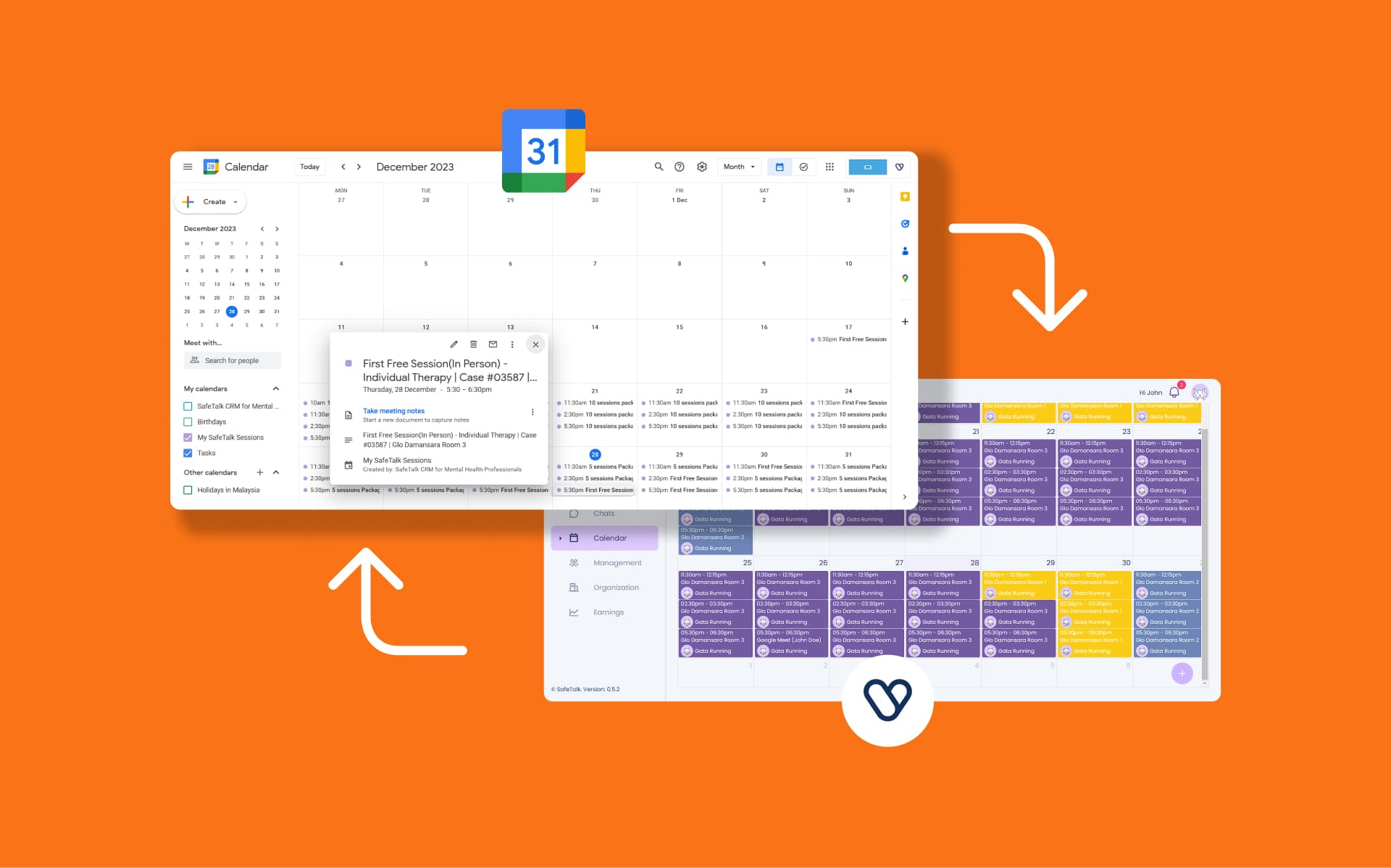
To ensure your events sync correctly between SafeTalk and Google Calendar, it’s important that your Google account connection and calendar permissions are properly set up. This guide covers the basic requirements and common troubleshooting steps to help you resolve most synchronization issues quickly.
For an overview of how SafeTalk calendar scheduling works, see:
👉🏻 Sync SafeTalk calendar with your Google calendar – A Quick Guide!
Common Issue #1: Missing Refresh Token
If upon setting up your Gcal Sync, you are seeing a message that says “Unable to setup Google Calendar Sync! Missing refresh token”, then it’s just a few steps to fix this issue. This commonly happens if you have previously synced your SafeTalk account & Google Calendar. We need to remove your previous connection.
- On top right, where you can see you Profile Picture, click on it and select the account you want to sync with:
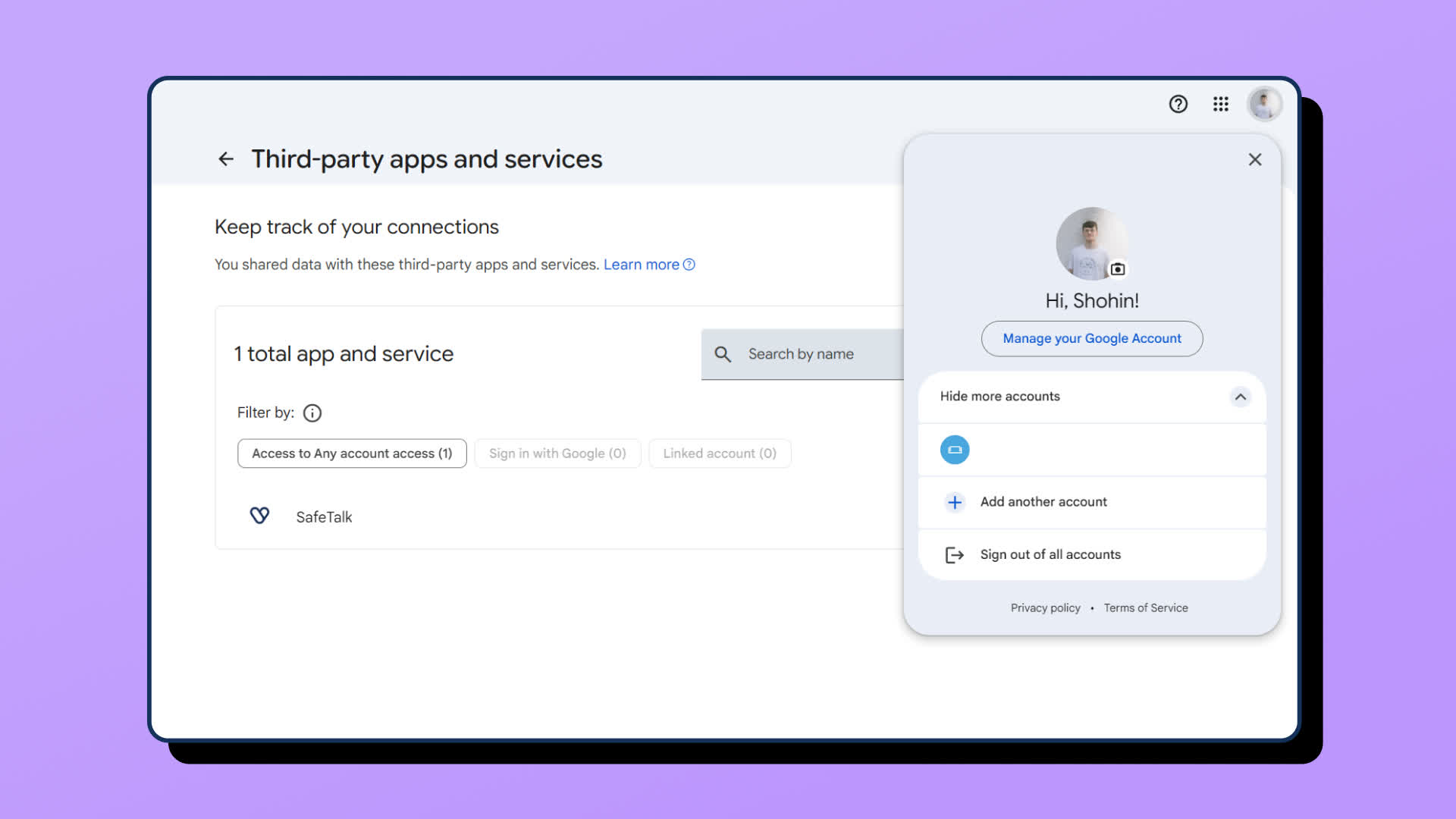
- Once you have switched to the correct account, in the middle of the screen, under “total apps and services” you should be able to see “SafeTalk” (refer to screenshot above). If “SafeTalk” does not appear in your apps and services, means your previous connection has already been removed. You can jump into step 2.
- If SafeTalk is there under “total apps and services”, click on “SafeTalk”, a new page will open, scroll all the way to the bottom of the page and click on “Delete all connections that you have with SafeTalk”
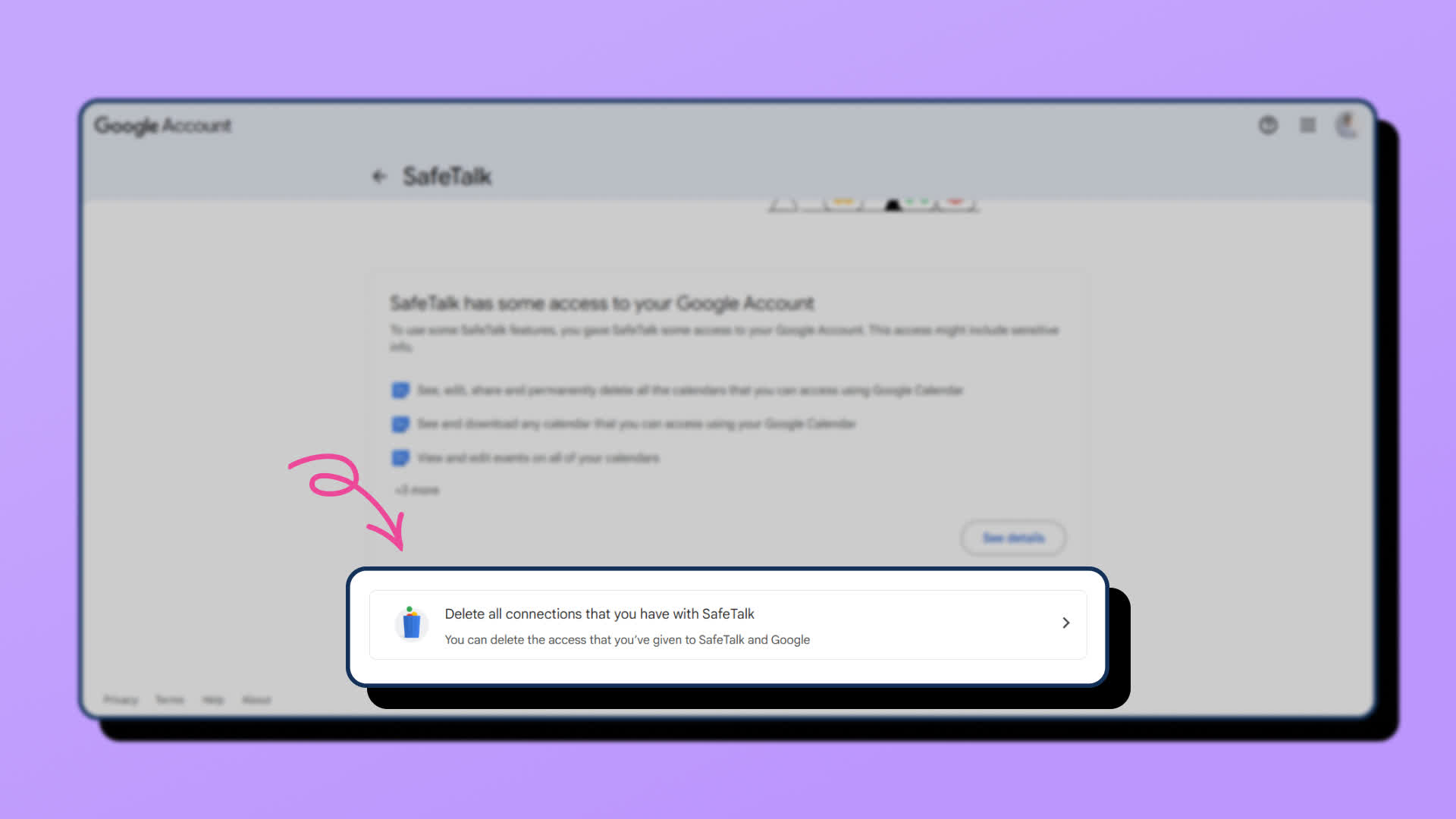
- Your previous connection should be removed and now you can create a new connection & make sure it works smoothly.
Common Issue #2: Duplicate Sessions appearing on your Google Calendar
As of recent update by Google, it may cause some users to experience duplicate session records in Google Calendar. To resolve this issue, you need to remove the old calendar from your Google account. Follow the steps below to complete this process:
Steps:
1. Open your Google Calendar
2. On the bottom left side of the screen you’ll see two copies of “My SafeTalk Sessions”
3. Delete a the duplicated calendar. Video below showing how to do it.
Very Important: There will be two calendars displayed “My SafeTalk Sessions” & “My SafeTalk Sessions – #012345” (#012345 is the your account id). Make sure to delete the “My SafeTalk Session” calendar & not the one that includes your ID at the end ( “My SafeTalk Sessions – #012345” )
Next Step: Update SafeTalk Settings
After completing the calendar removal, log in to SafeTalk and navigate to: My Practice → Google Calendar Sync → and click on Update Settings.
Once this step is completed, your calendar should return to normal functionality.