
How to Reorder Services & Packages on Your Booking Page

SafeTalk shows your services and packages to clients in the order you set under Management → Services. This guide explains how to change that order.
How the order works
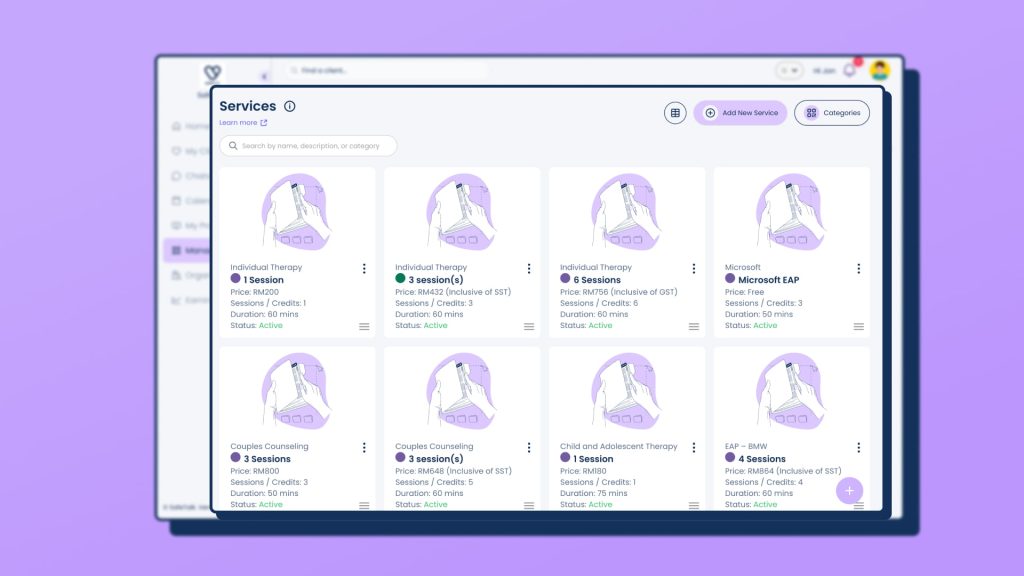
In card view, your services are laid out in rows. The order numbers follow the same way you read: left to right, then down to the next row.
1 2 3 4
5 6 7 8
So service 1 is the first card in the top-left, service 2 is to its right, and service 5 starts the second row. In table view, there is one service per row, so the order simply runs top to bottom.
What about service categories?
Every service belongs to a Service Category, like Individual Therapy or Couples Therapy.
On the booking page, services are shown grouped under their category and your numbering decides two things:
1. Which category comes first. The category that holds your number 1 service is shown first. Every other category follows, based on its own highest-ranked service.
2. The order inside each category. The numbers sort the services within their own category.
Here’s an example. On your Services page, you might have:
- 1 Session (Individual Therapy)
- 3 Sessions (Individual Therapy)
- 6 Sessions (Individual Therapy)
- 1 Session (Couples Therapy)
- 3 Sessions (Couples Therapy)
- 6 Sessions (Couples Therapy)
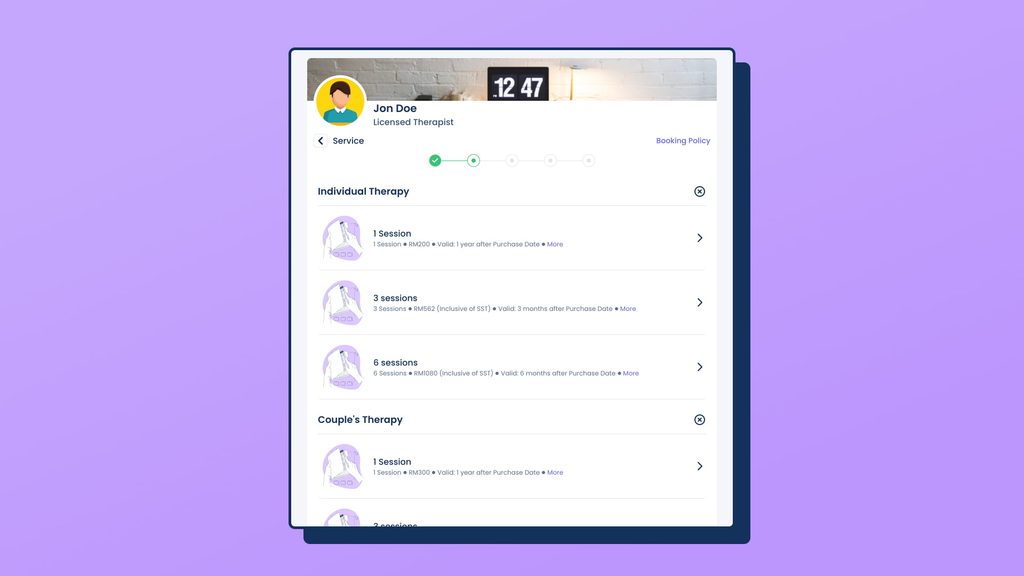
Clients on the booking page will then see:
Individual Therapy        ← first, because it holds number 1
   1. 1 Session
   2. 3 Sessions
   3. 6 Sessions

Couples Therapy
   4. 1 Session
   5. 3 Sessions
   6. 6 Sessions
In short: to change which category clients see first, move one of its services to number 1. To change the order of services inside a category, rearrange the numbers between them.
Before you start
- You need at least two service packages for reordering to apply
- Service packages must be created first — see How to Manage Your Therapy Packages on SafeTalk
Reorder services one by one
- Login to your SafeTalk Account
- Click Management on the menu sidebar & select Services
- Find the six-dot icon at the bottom right of the service card — this is the drag handle
- Click and hold the drag handle, then drag the service to its new position
- Drop it. The order numbers (1, 2, 3…) update automatically
- The new order is saved automatically — you’ll see “Services order updated successfully.”
Note: there is no save button. The order is saved the moment you drop the service.
Reorder multiple services at once
Bulk reordering is available in table view only.
- On the Services page, click the table view icon at the top right
- Tick the checkboxes next to all the services you want to move
- Grab the drag handle of any selected row and drag — all selected services move together
- Drop the group into place. Order numbers update automatically
Troubleshooting
- A service isn’t showing on the booking page — check that it is assigned to the relevant schedule / booking link
- I can’t drag a service — make sure you’re holding the six-dot drag handle, not the card itself