
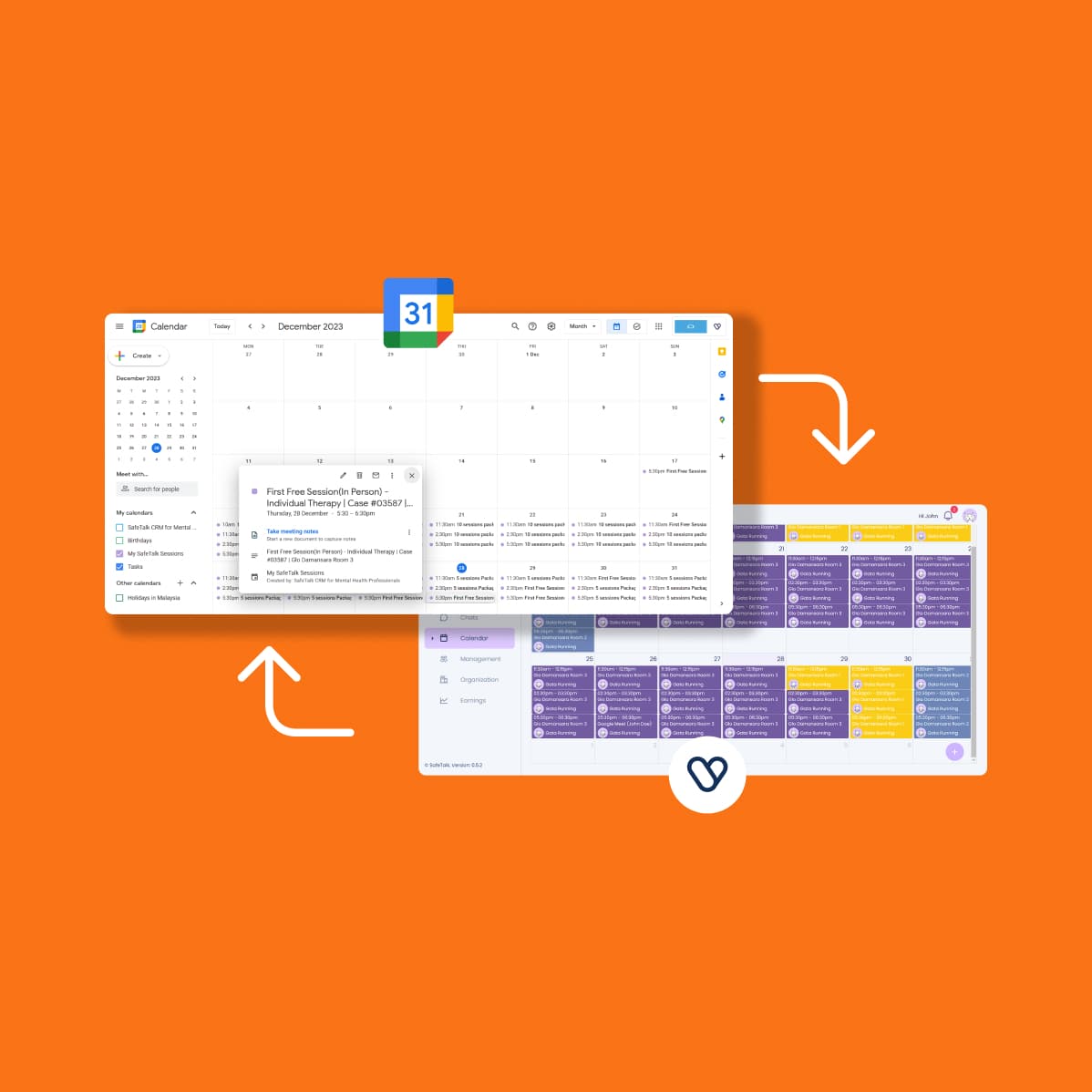
Welcome to this quick guide where we show you how to sync your SafeTalk calendar with your Google Calendar.
Before we dive into it, let us clarify few things
- SafeTalk’s Google Calendar Sync feature is a two-way sync. Means you can enable all your session from SafeTalk to appear on your Google Calendar & events from your Google Calendar to appear on your SafeTalk calendar. Even more, you have full control of this, so you can choose to enable two-way or one-way sync depending what suits your needs the best.
- You can set sync with up to 3 different Google Accounts
- In adherence to HIPAA standards, no electronic Protected Health Information (ePHI) will be shared with Google Calendar to uphold the strict confidentiality and protection of your data.
So let’s get started!
1. Login to your SafeTalk Account. Go to “My Booking Schedule“
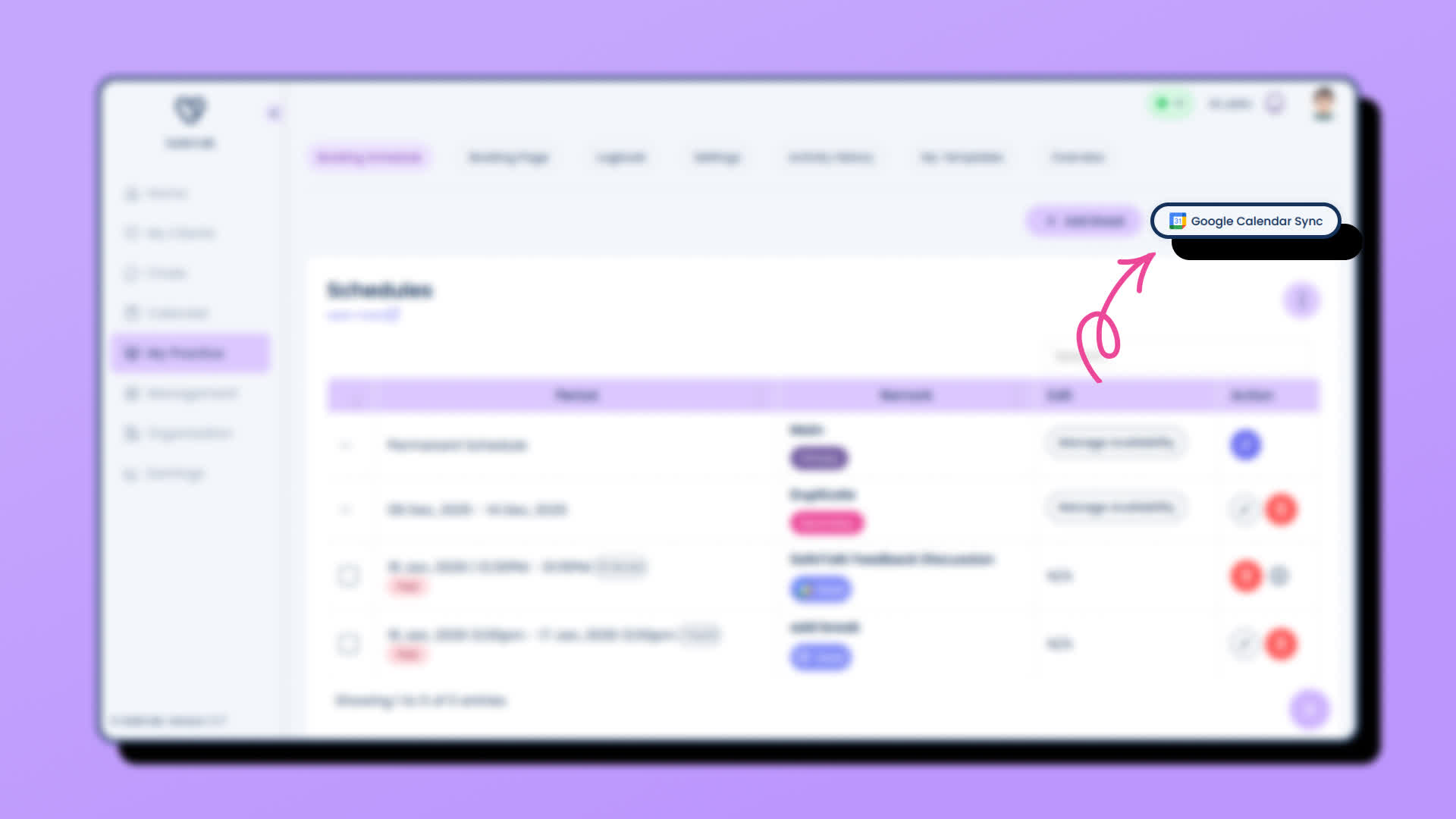
- On top right of the “My booking schedule” page, click the “Google Calendar Sync” button
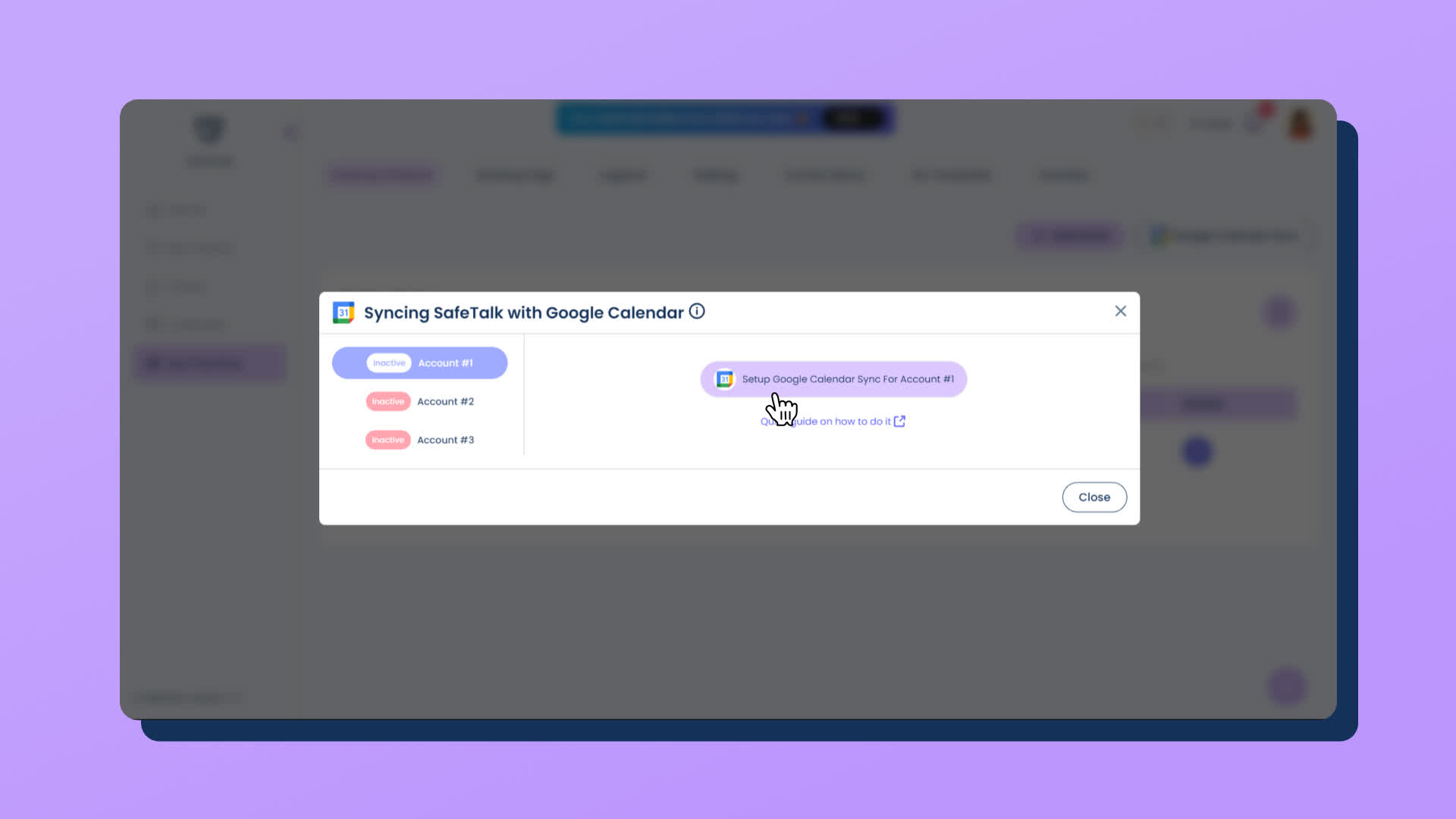
2. Setup a new connection
- Note: you can sync with up to THREE different accounts
- Select one of the accounts and click on “Setup Google Calendar Sync For Account #“
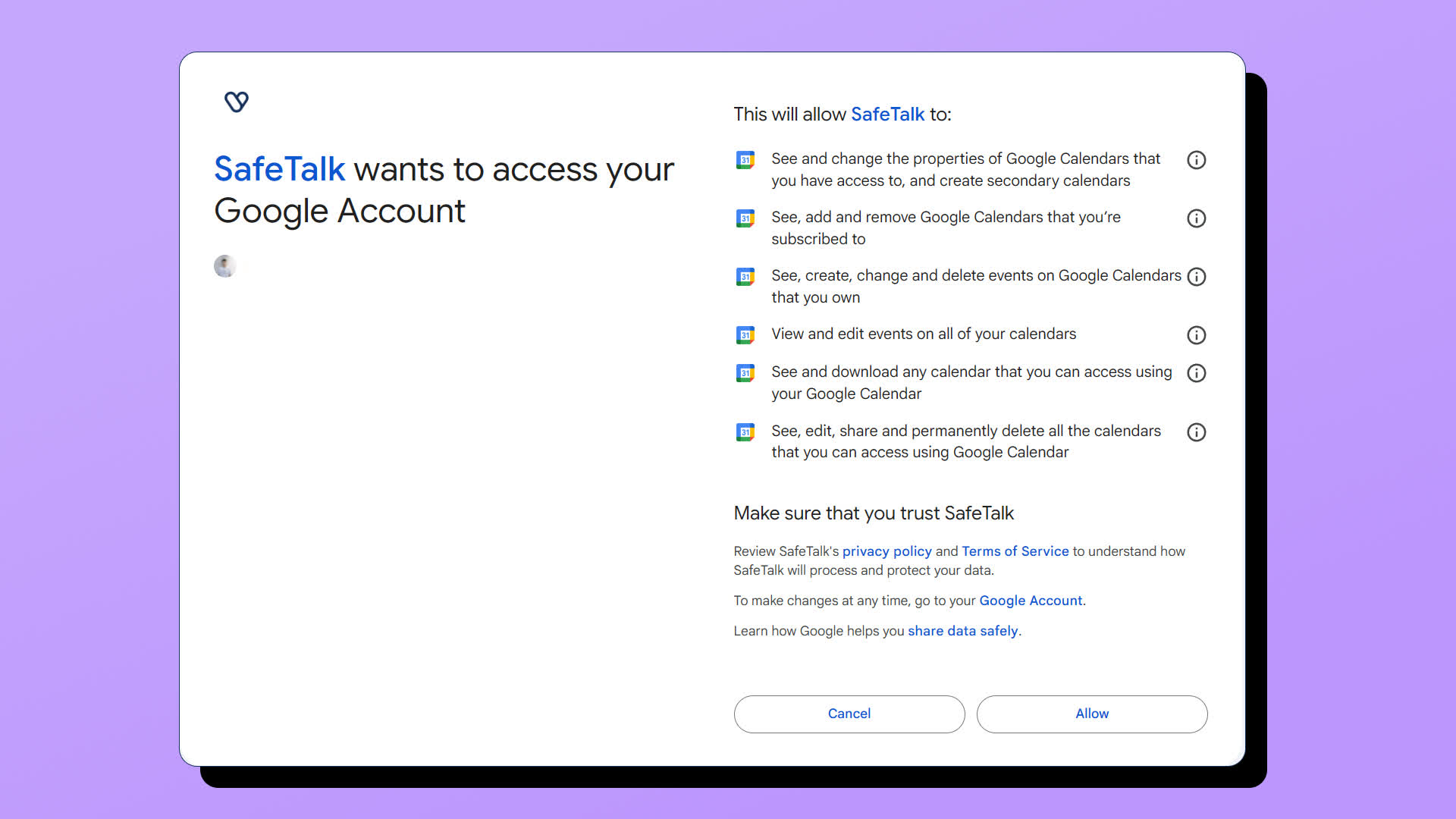
- Next, you will be redirected to a “Sign in with Google” page(screenshot below). Make sure to select “Allow” to give SafeTalk permission to connect with your Google Account.
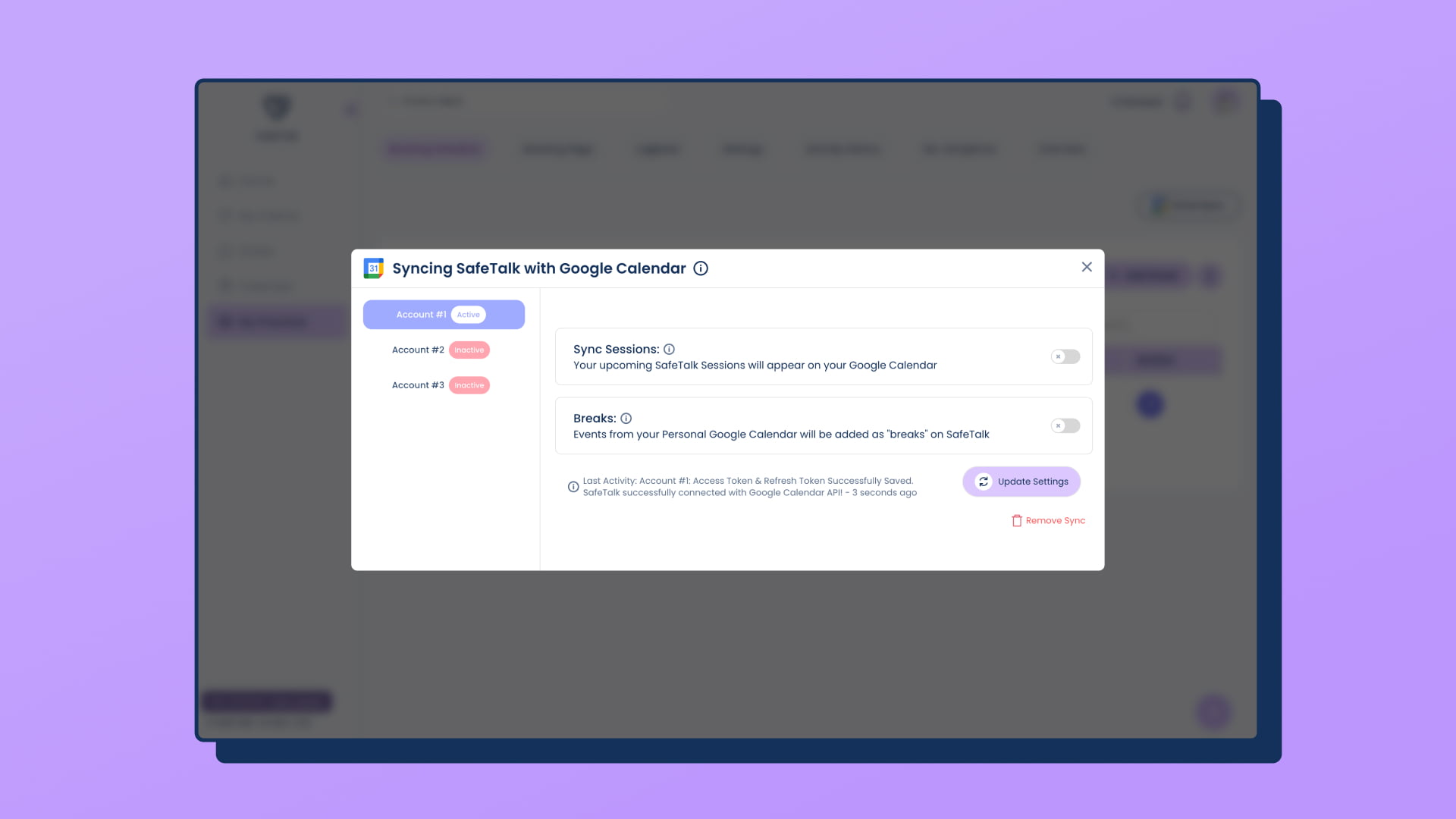
- After you click “Allow”, you will be redirected back to your SafeTalk account. Click “Google Calendar Sync” button on top right again, and you will see the the settings for the connection(screenshot below)
3. Configure & enable what types of events you want to sync
- Sync Sessions: all your SafeTalk session will appear on your Google Calendar
- Sync Breaks: all your Google Calendar events will be added as Breaks on SafeTalk
- If you enable “Breaks” – Additional calendar options will automatically appear below.
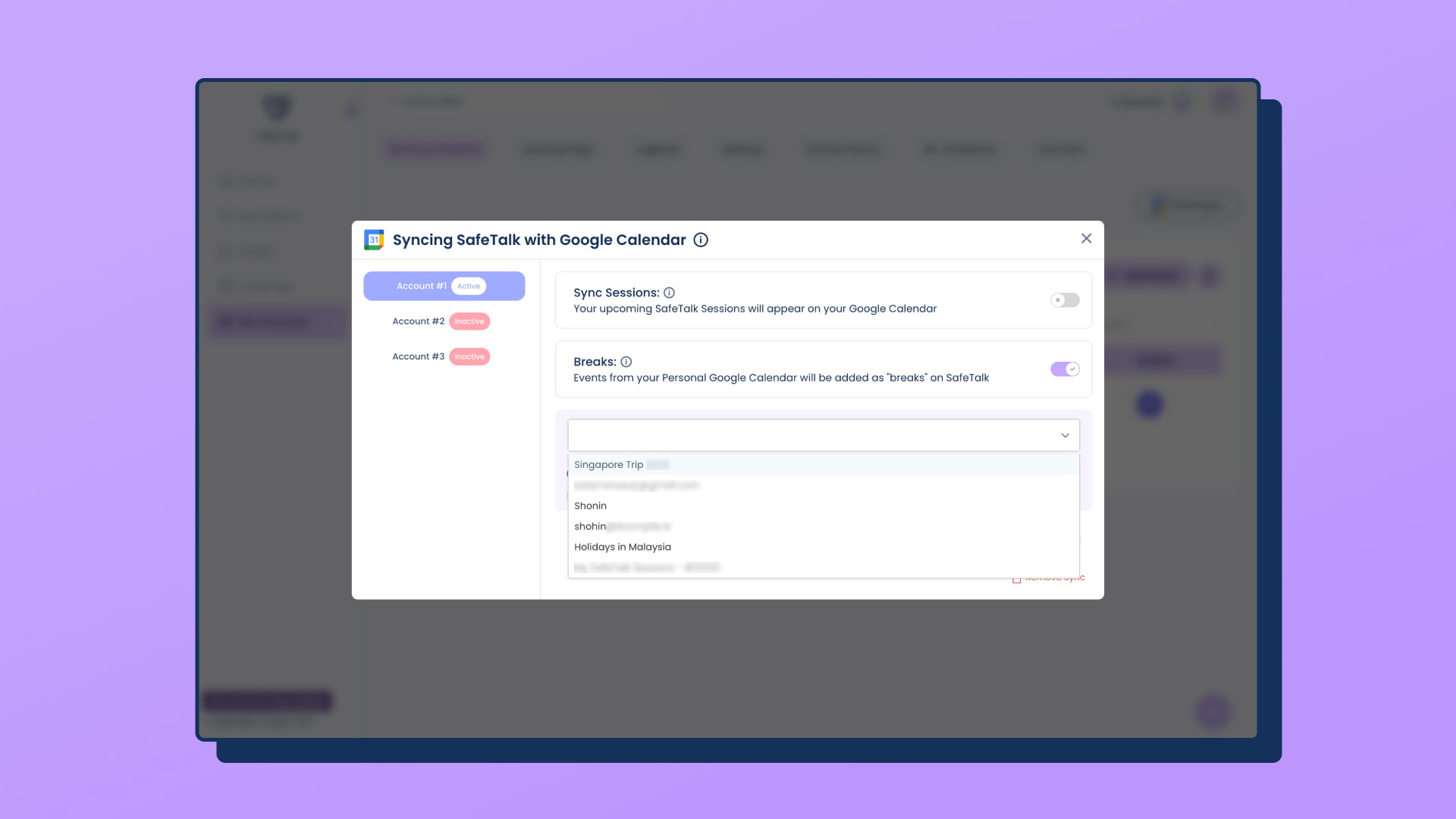
- All of your Google Account Calendars (explained below) will automatically load inside the dropdown, and you will see a “Calendars Loaded Successfully” message (screenshot below).
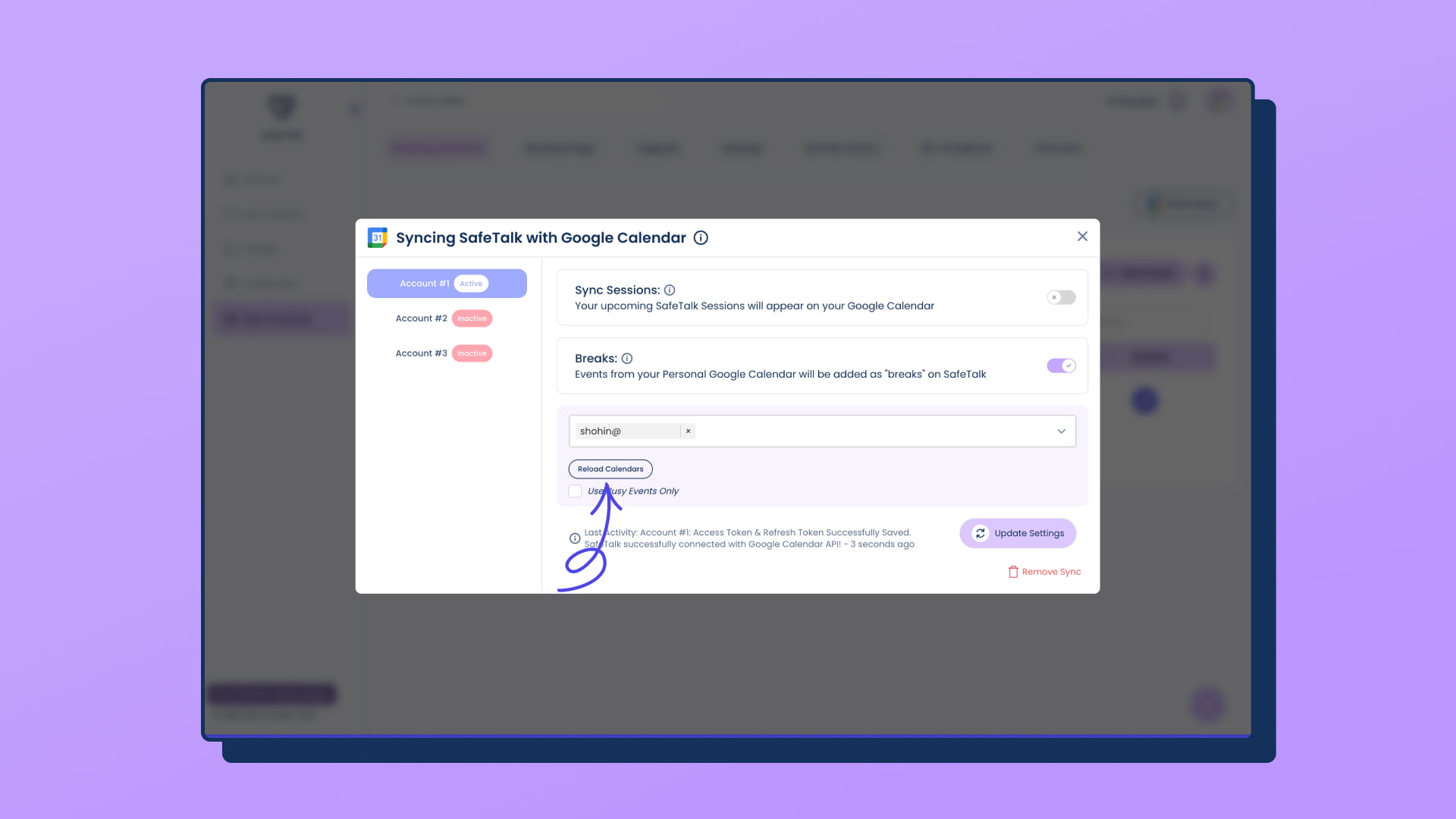
Select which calendar(s) you want to pull Breaks from. If needed, you can also use the Reload Calendars button to manually refresh the calendar list.
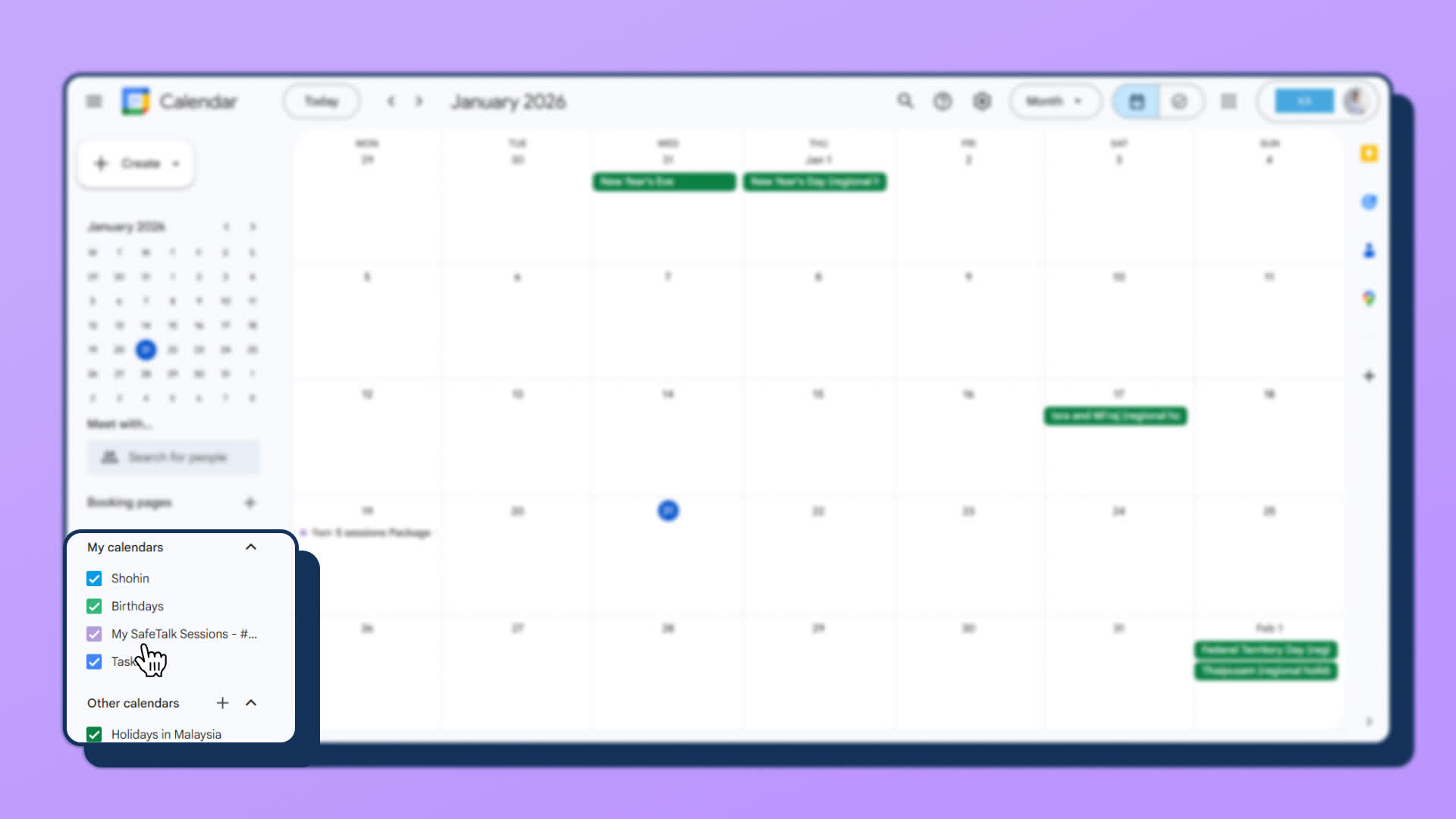
- For your reference: the list of calendars that will appear in the dropdown(screenshot above) are all the calendars that are inside your Google Account. You may have one or many calendars under the same account(screenshot below). The option to select calendars provides you with better control & allows you to select specific calendars to populate Breaks from.
- Use Busy Events Only: After selecting the calendar(s), you will see an additional checkbox called “Use Busy Events Only”. When enabled, SafeTalk will check the event availability in your Google Calendar and only pull events marked as Busy to populate Breaks. Events marked as Free will be ignored.
4. Now let’s “Run sync”
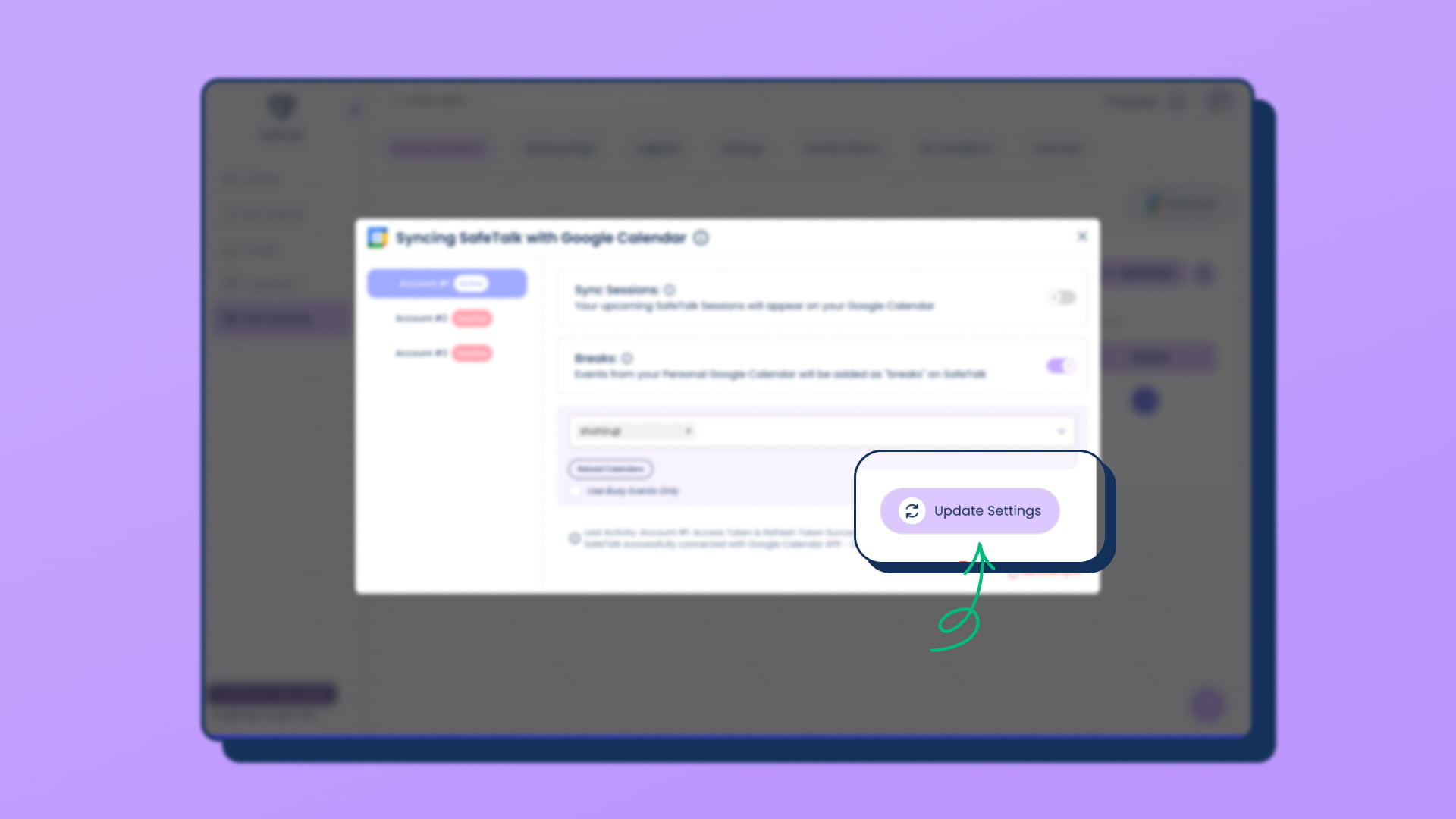
- After you have configured the sync options(previous 3 steps), click on “Update Settings” & the data between your Google Calendar & SafeTalk account will be synced.
5. Auto Sync
- You only need to “Run Sync” from your accounts once during the setup. Your new, rescheduled & cancelled sessions will automatically be synced with your Google Calendar.
- Do expect a slight delay of up to 2 hours for new, rescheduled, cancelled sessions to be fully synced between two accounts. If you may experience longer delays, do reach out to our support team for assistance
- You can always click “Run Sync” manually at any time to trigger an instant sync.
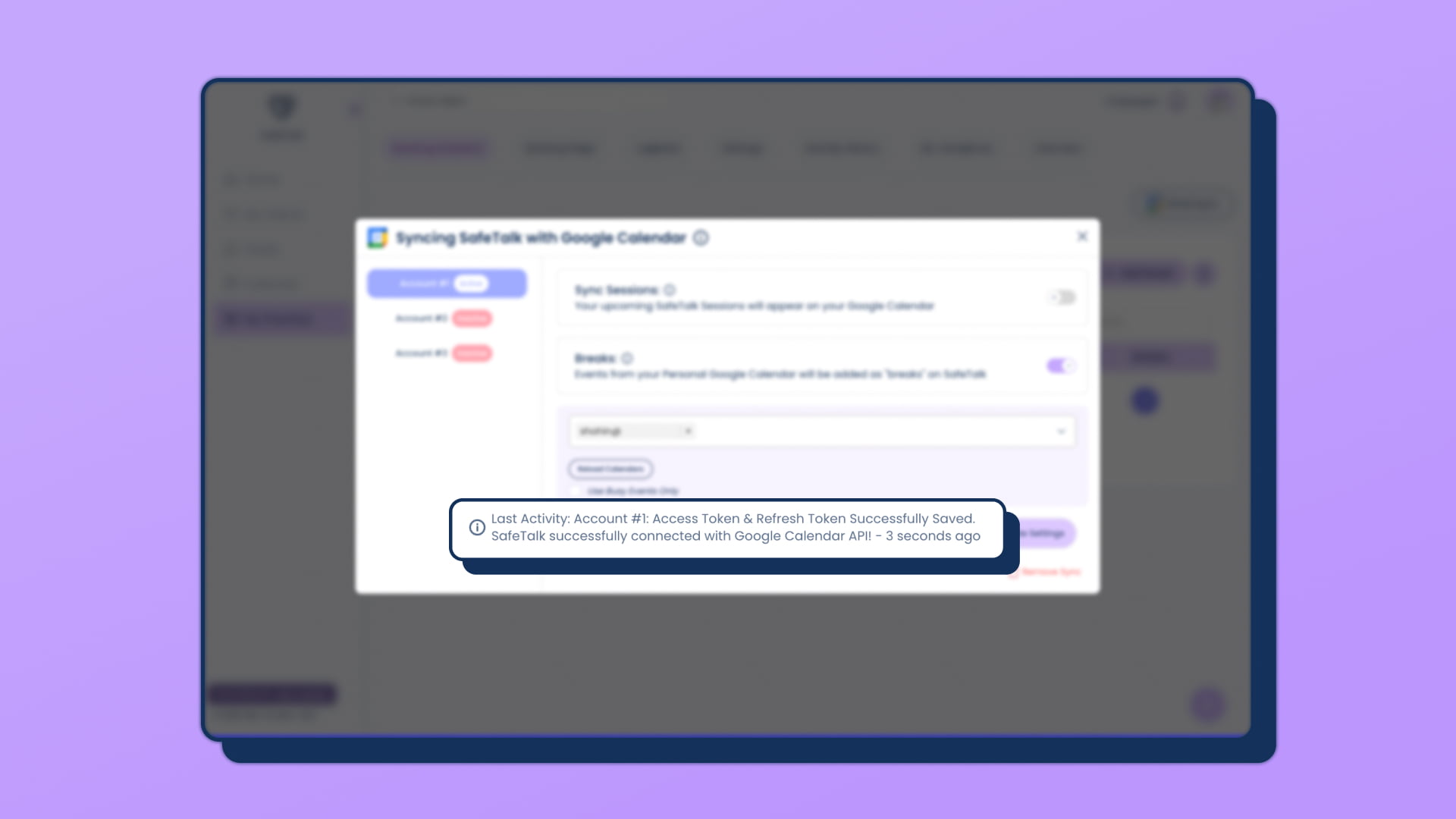
- The message at the bottom of the popup will show what’s the latest “Sync” status. It should provide a clear indication when the last time your account updated or if there are any errors with your connection.
… and that’s all. Now your SafeTalk Calendar & Google Calendar should be in full sync.
Was this article helpful?
YesNo
About Author

Shavkat Aslamshoev
Co-Founder @ SafeTalk.
Believes in the Power of Technology to Enhance Mental Health.
Accredited Mental Health First Aider, HIPAA Security & HIPAA Awareness for Business Associates Certified.