

Managing your schedule as a therapist can be tricky, especially when you have a fixed weekly availability but need the occasional day off for workshops, meetings, or just some much-needed rest.
That’s where Breaks come in.
What Are “Breaks” in SafeTalk?
Breaks are special time blocks you can set to temporarily override your usual schedule. They’re perfect for one-off events or personal time, without needing to update your weekly availability.
Let’s say your booking availability is set to:
- Monday to Friday, 9AM – 5PM
But next Tuesday, you have a full-day workshop. Instead of editing your entire schedule, just create a Break from 9AM to 5PM on Tuesday. That time slot will automatically be blocked off, clients won’t be able to book you during that time.
How to Add a Break in SafeTalk
Via My Schedule
- Log in to your SafeTalk Account.
- From the sidebar, go to My Practice → Booking Schedule
- This page shows everything you’ve got going on: your available hours, your google calendar synced events and any breaks you’ve added
- This page shows everything you’ve got going on: your available hours, your google calendar synced events and any breaks you’ve added
- Click the “+ Add Break” button at the top right.
- Fill in the required details and click Save.
Via Quick Create
- From anywhere in SafeTalk, click the “+” button at the bottom right corner.
- Select Quick Create.
- At the top of the panel, choose Schedule Break.
- Enter the required details.
- Click Save to confirm.
Breaks help protect your time by preventing double bookings, letting you adjust availability without changing your regular schedule, and supporting a better work-life balance.
Google Calendar Integration
If you’ve synced your Google Calendar with SafeTalk & enabled Breaks in the settings:
- Any personal events in your Google Calendar will automatically create breaks in SafeTalk, keeping your availability up-to-date in real time.
Learn more about Google Calendar Integration here
Breaks on your Calendar
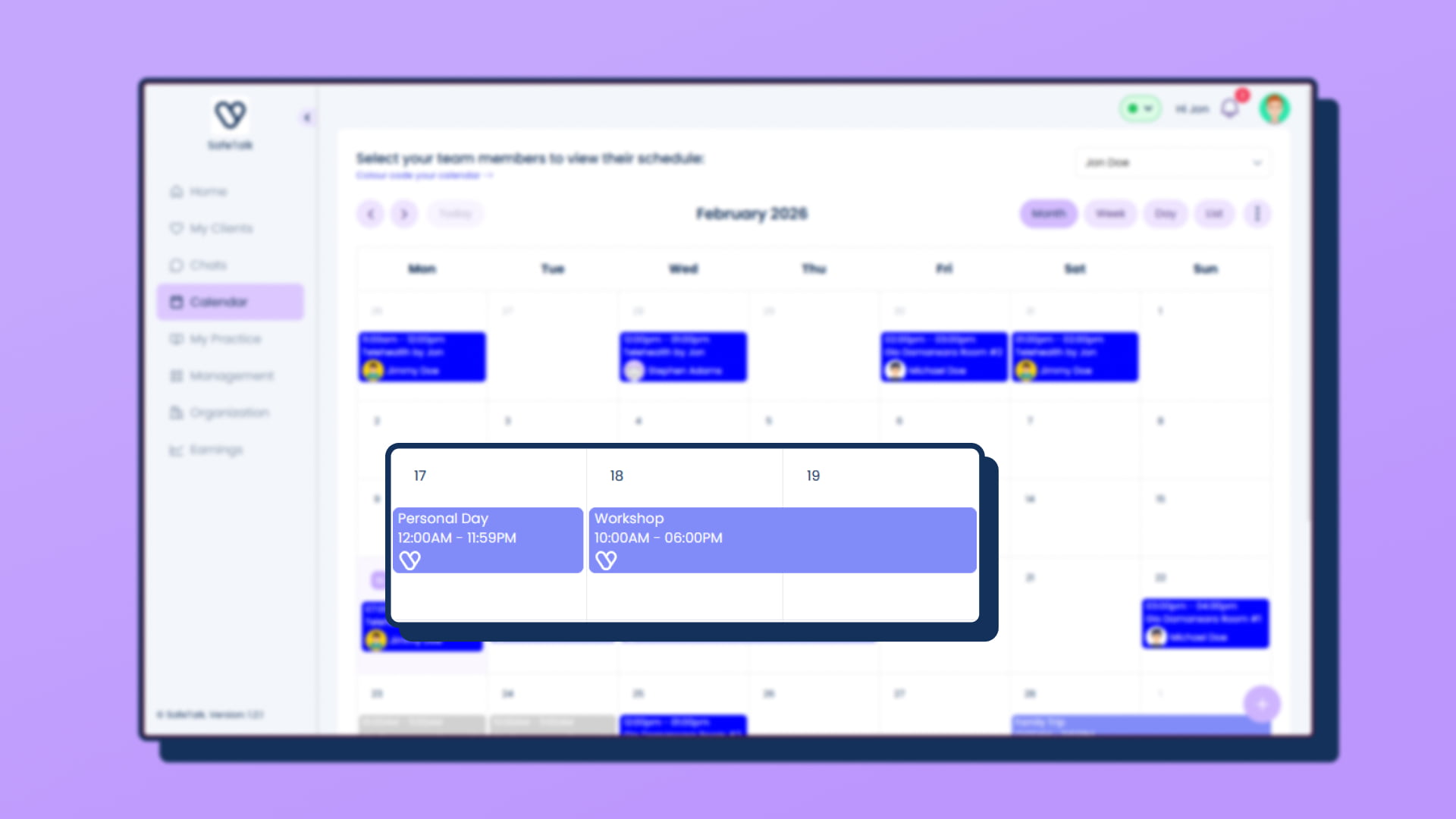
- Breaks automatically appear on your SafeTalk calendar for easy tracking(blue colored cards)
- When rescheduling, SafeTalk notifies you if the new time overlaps with a break.
- Ensures you don’t accidentally book over your time off or personal commitments.
How to Delete a Break in SafeTalk
- From the sidebar, go to My Practice → Booking Schedule
- Find the break that you want to remove & click on the delete button
- If your calendar feels cluttered with past breaks, just click the ellipsis (⋯) and select “Clear All Past Breaks” to remove them in one go.
About Author