
Sometimes, clients may make a payment during the session, or they might be clients who don’t use SafeTalk. It’s important to record these payments correctly to keep your earnings reports accurate and your practice organized.
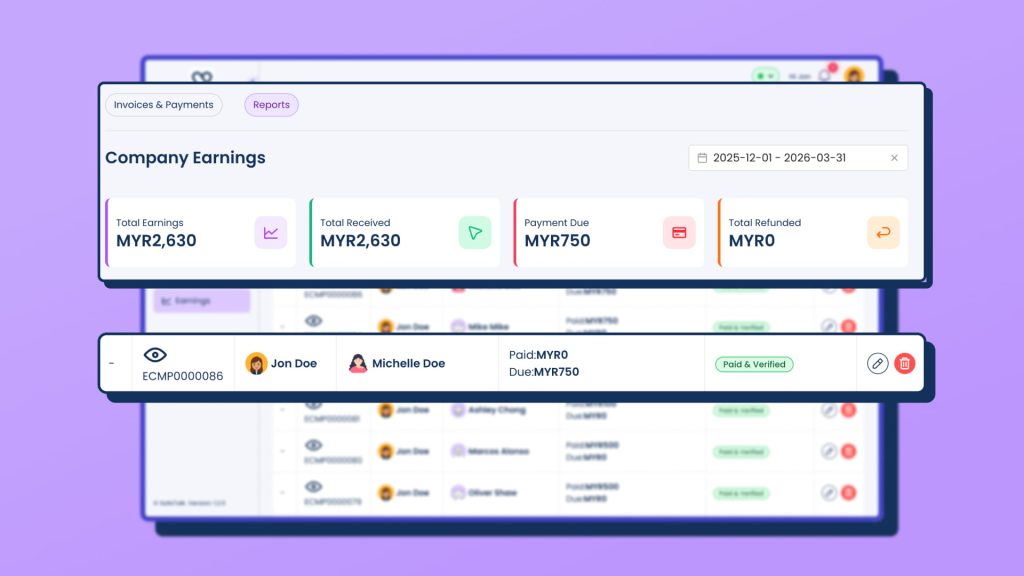
Why You Shouldn’t Just Mark an Invoice as Paid
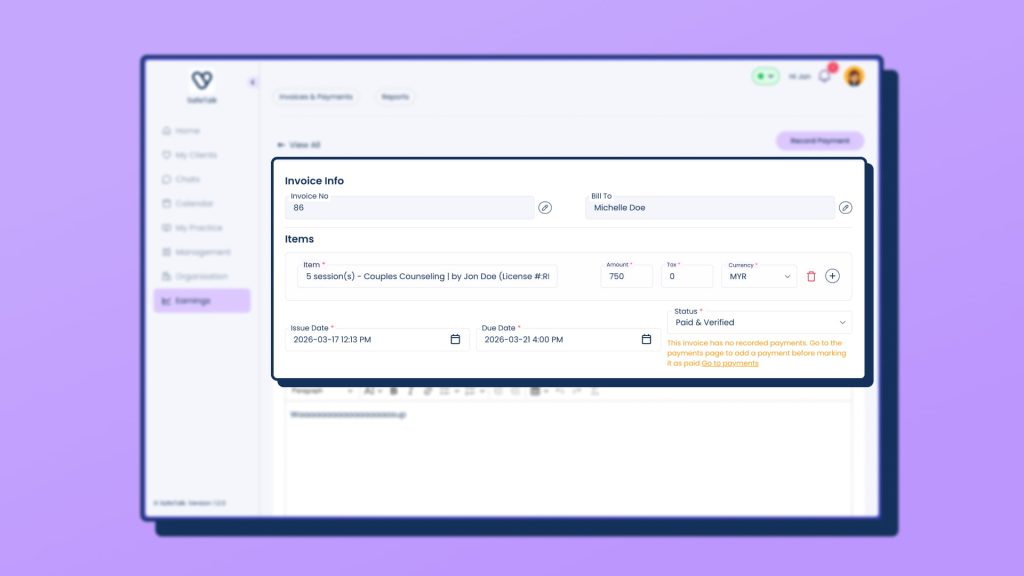
Avoid editing the invoice directly and setting the status to Paid & Verified. Doing this will not update your earnings correctly and will show the payment as outstanding in your reports. Always follow the proper steps below.
How to Record and Verify a Payment
Step 1: Locate the Invoice
- Login to your SafeTalk account
- Go to the Earnings page
- Find the invoice related to the session payment
- Click the eye icon to open the invoice details page
Step 2: Add the Payment
- On the top right of the invoice page, click Add Payment/Refund
- Fill in the payment details:
- Amount received
- Payment date
- Payment method
- Optionally attach a receipt for your records
- Click Submit
Step 3: Verify and Manage the Payment
After submitting, the payment will still need to be verified:
- Scroll down to the Payments table on the invoice page
- Click Verify next to the payment
- On this page you can:
- Edit the payment if a receipt was missing or incorrect, or if the payment time needs adjustment
- Add an optional note
- Delete the payment if information was entered incorrectly
Once you set the payment to Paid & Verified, SafeTalk will automatically send an email to the client letting them know the payment has been received.
For refunds
If you need to process a refund instead, follow this guide:
👉🏻 How to Process a Payment Refund on SafeTalk
Keep Payments Accurate and Transparent
Recording and verifying invoice payments on SafeTalk ensures your earnings reports are accurate and your client records are complete. Following the proper steps and attaching receipts when needed maintains professionalism, while SafeTalk automatically notifies clients once payments are verified, keeping your practice organized and transparent.