
How to Manually Run an Automation for a Client

Sometimes, you may need to run an automation for a client outside its usual trigger conditions. For example, when ending a client’s therapy journey, you might want to send a final message or assign a closing feedback form. You can trigger an automation manually from the client’s file to carry out these actions when needed.
Step 1: Open the Client’s File
Go to My Clients and open the file of the client you want to run the automation for.
Scroll down to the Automations section. Here, you can view the automations associated with the client, including the automation title, scheduled date, and status.
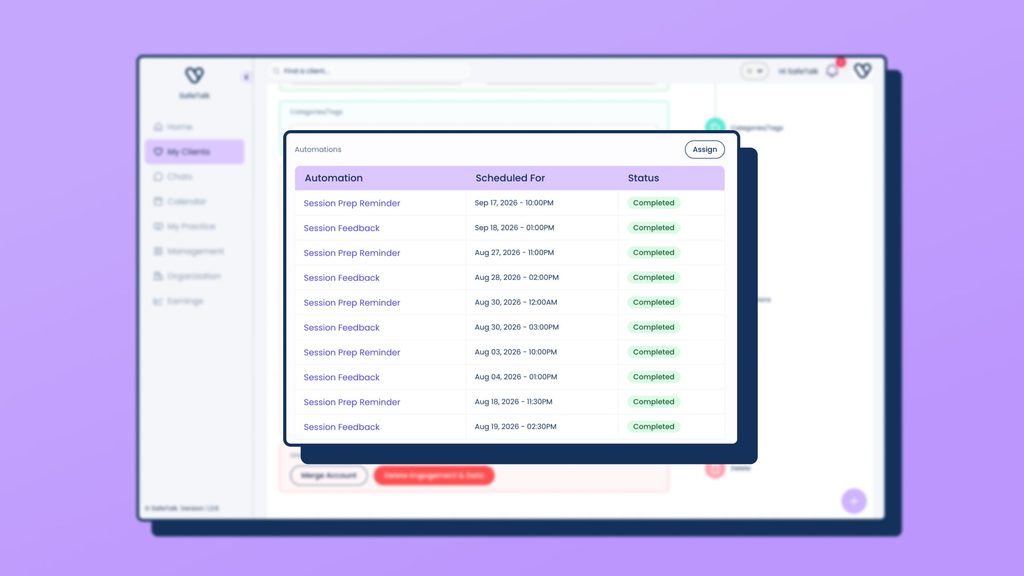
Step 2: Assign an Automation
Click Assign to open the automation selection popup.
Select the automation you want to run for the client and confirm your selection.
Note: Only automations with the trigger type set to Manual Trigger will appear in the selection popup. If you cannot find an automation, check its trigger settings.
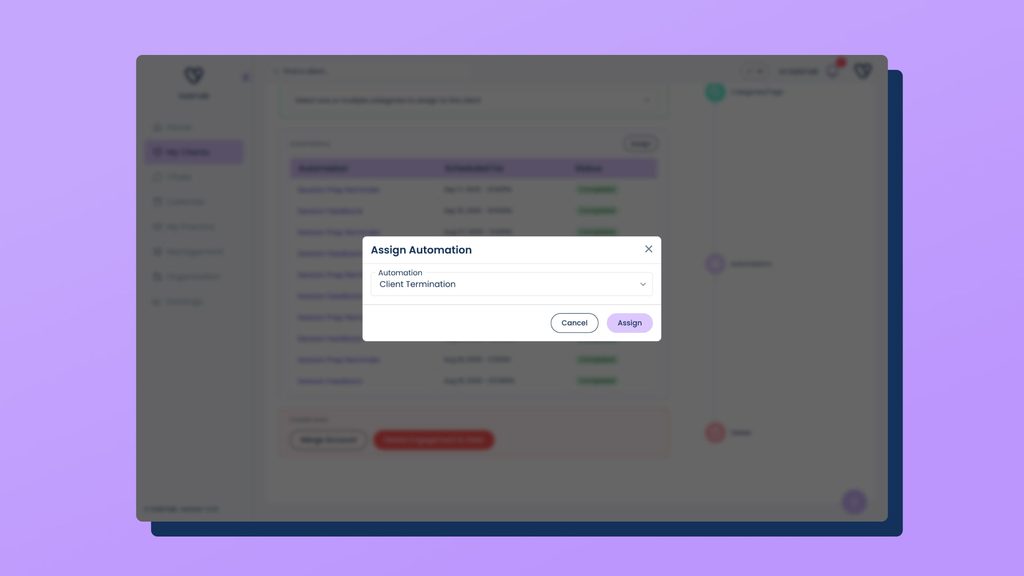
Step 3: Check the Automation Status
After assigning the automation, return to the client’s Automations section to check its scheduled date and status.
The automation is scheduled to run one minute after assignment. Once triggered, it will carry out its configured actions, such as assigning tasks, sending chat messages or creating case notes.
For more information on creating and configuring automations, see How to Create and Manage Automations.