
Setting Up E-Invoicing in SafeTalk

Malaysia’s move to LHDN e-invoicing is reshaping how therapists manage billing, and this guide explains what it means and how it works in SafeTalk
What is E-invoicing?
E-invoicing is a digital invoicing system where every invoice you issue must be registered with IRBM. Once submitted, IRBM validates the details and returns a Unique Identification Number and QR code that become part of the final invoice. The requirement applies to B2B, B2C and B2G transactions according to Malaysia’s phased rollout timeline. You can handle this manually through the MyInvois Portal, or automate the entire process through integrated platforms like SafeTalk
E-invoicing Eligibility
| Phases | Implementation Date | Targeted Taxpayers (Annual Turnover) | End of Relaxation Period |
|---|---|---|---|
| > RM100m | 31 Jan 2025 | ||
| RM25m to RM100m | 30 Jun 2025 | ||
| RM5m to RM25m | 31 Dec 2025 | ||
| Phase 4 | 1 January 2026 | RM1m to RM5m | 30 Jun 2026 |
| Phase 5 | 1 July 2026 | RM500,000 to RM1m | 31 Dec 2026 |
*If your annual revenue is below RM500,000, you are exempt from e-invoicing
**This information is accurate as of November 2025. Check official government updates regularly to stay current
***Reference: https://www.hasil.gov.my/en/e-invoice/
How does E-invoicing work for Therapists & Centers
- Direct Invoice: Where both parties(buyer & seller) require the invoice for accounting/tax purposes. B2B/B2G, B2C (optionally)
- You issue an invoice
- Invoice sent to IRBM for validation
- IRBM returns UIN and QR code
- Consolidated Invoice/General Public: Where the buyer does not require an official receipt. B2C
- Used mainly for B2C or many small transactions.
- You group all sales for the month
- Submit one consolidated e-invoice to IRBM end of the month
- IRBM validates and returns a single UIN and QR code for the entire batch.
Below is the list of information needed to process an e-invoice:
| Direct Invoice | Consolidated Invoice/General Public |
| Seller details – Legal Entity (Business, Person) Name – Tax Identification Number – BRN/IC/Passport No – Address – Contact info (Email, Phone Number) Buyer details – Legal Entity (Business, Person) Name – Tax Identification Number – BRN/IC/Passport No – Address | Seller details – Legal Entity (Business, Person) Name – Tax Identification Number – BRN/IC/Passport No – Address – Contact info (Email, Phone Number) |
Easy E-Invoice Submission with SafeTalk
Easy Submission
- Use the Invoicing/Payment module in SafeTalk as usual
- Click “Sync E-Invoice” to validate the invoice
- SafeTalk sends the data to IRBM’s MyInvois system and retrieves the UIN + QR code automatically
Automatic Updates
- SafeTalk attaches the UIN and QR code to the invoice(.pdf)
- No manual upload to the MyInvois Portal
Client Experience
- When clients download their invoice, the QR code is already embedded.
- They can scan it to verify the invoice directly with IRBM
How to get started
- Update Seller Tax Information: Legal Entity, TIN, address, Contact Info (one-time)
- Setup of SafeTalk as your intermediary in MyInvois Portal (one-time)
- Update Client Tax Information: Legal Entity, TIN, Address & Contact
- Auto-sync your e-invoice into IRBM system in one click
- Generate Consolidated E‑Invoice at the end of the month & notify IRBM system
SafeTalk x E-Invoice: Seller Setup
- Login to your SafeTalk account
- Go To Management → Payment Channels
- Update Billing Info & Verify Tin
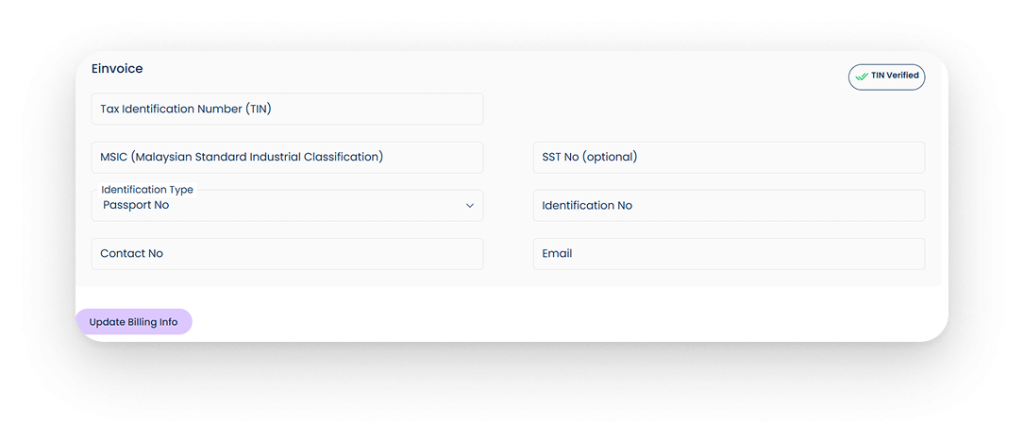
Information to include :
- Legal Entity (Business or Person’s Legal name)
- Address
- TIN
- MSIC (88901 for counselling services) - SST No
- Identification Type(BRN/IC/Passport) & Number
- Contact No & Email Address
Assign SafeTalk As Intermediary
Allow SafeTalk as your intermediary in MyInvois so SafeTalk can submit invoices directly to IRBM on your behalf
- Go to myinvois.hasil.gov.my
- Go to “Taxpayer Profile”
- Add Intermediary & add SafeTalk details
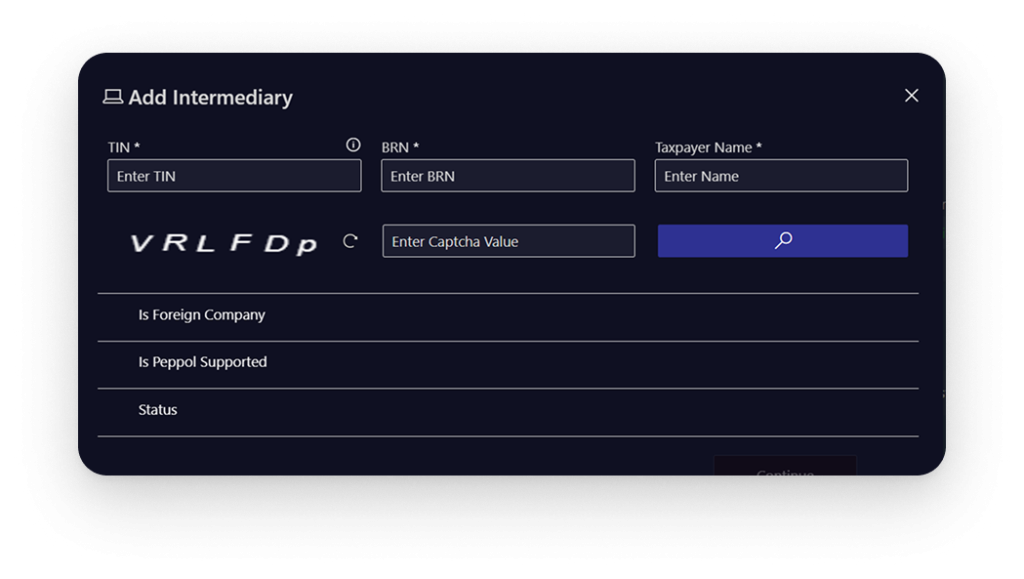
Contact our team to obtain our company information (TIN, BRN & TaxPayer) here
Clients’ TIN on SafeTalk
Include Relevant Client(Buyer) info in My Clients → File → Account
- TIN
- Identification Type (BRN/IC/Passport)
- Identification No
- Address(optional)
Click “Verify Tin” to ensure the info is correct & usable for E-invoice
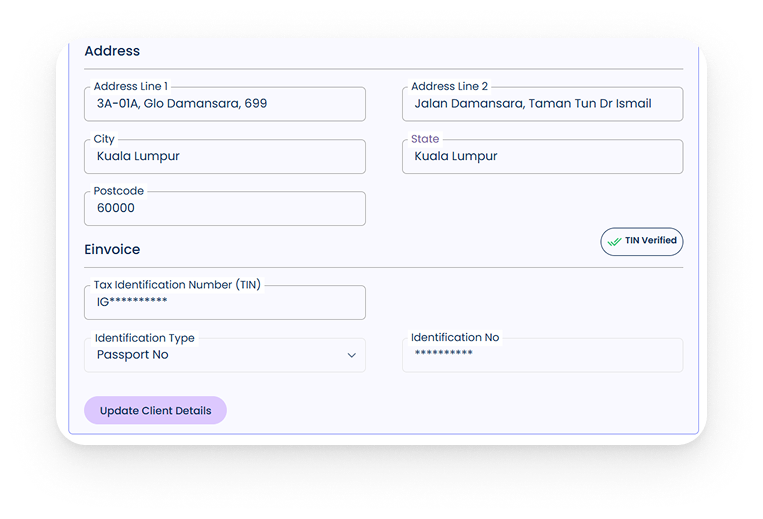
Note: Client will see the options to update the E-invoice info(TIN/Identification/Address) by in their Account profile
Submit E-invoice
Go to Earnings → Invoices & Payments
- E-invoice Submission Status Is displayed on the table
- Open the invoice & you will see the “E-invoice Sync” button
- Click “E-invoice Sync” & wait for the status update
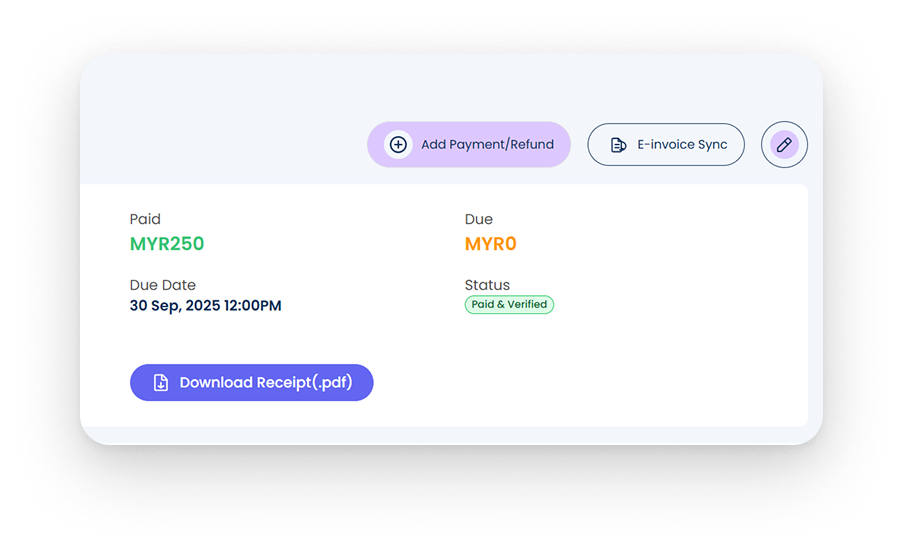
Important Points:
- IRBM can take up to 6 hours to verify the status of the invoice
- The Invoice status must be “Paid (Unverified)” or “Paid & Verified” in order to sync the E-invoice
- Client TIN must be included and verified
Consolidated E-invoice
- Click on “E-invoice Consolidation” & select the current months invoices that you want to submit to IRMB
- Consolidate selected Invoices into single consolidated invoice
- Open the consolidated invoice & you will see the “E-invoice Sync” button
- Click “E-invoice Sync” & wait for the status update
Important Points:
- IRBM can take up to 6 hours to verify the status of the invoice
- The Invoice status must be “Paid (Unverified)” or “Paid & Verified” in order to sync the E-invoice
Important Notes
- Submit Consolidated E-invoice before the 7th of the next month
- Once E-invoice is submitted you can only cancel it within 72 hours, after that you need to issue Refund/Credit Note on Myinvois Portal