

Running a therapy practice involves coordinating schedules, maintaining accurate records, managing client information, and ensuring professional consistency. The My Practice section in SafeTalk brings everything together into one structured workspace, giving individual therapists and organizations a centralized way to manage daily operations clearly and efficiently.
On the sidebar, click My Practice. At the top of the page, you will see the navigation tabs that organize your entire workflow.
Booking Schedule
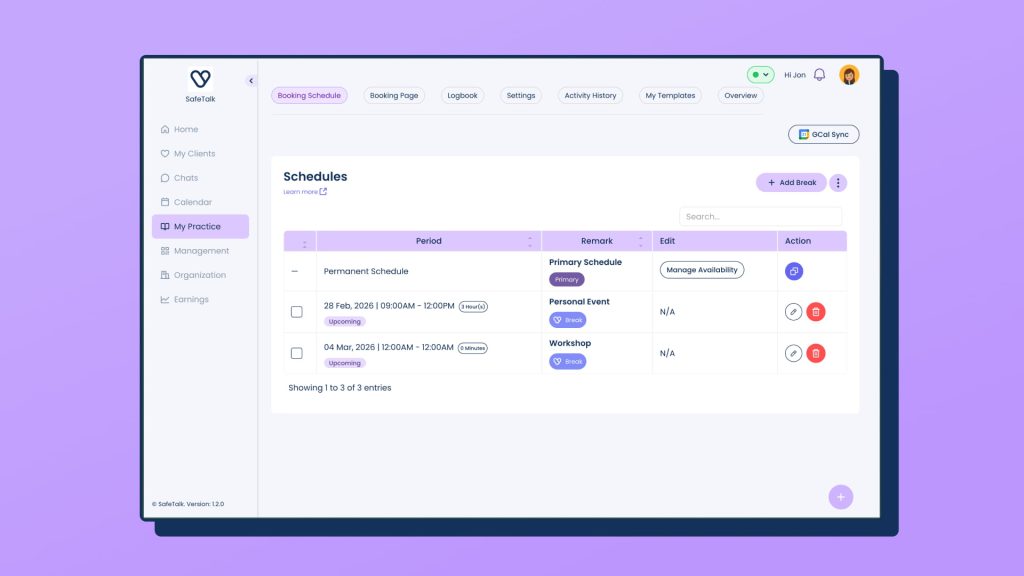
Your Booking Schedule is where you define your availability, assign rooms, manage session slots, add or edit breaks, and control how clients book within your working hours. You can also sync your Google Calendar, view synced events and upcoming breaks, providing both solo therapists and organizations a clear overview of schedules.
Full Guide:
👉🏻 How to Setup your Booking Schedule on SafeTalk
Booking Page
The Booking Page is your client-facing scheduling interface. It provides two preview modes so you can see exactly how your page appears to clients before sharing it. You are also provided with a direct booking link to share via WhatsApp, email, or social media, as well as an embed link that allows you to integrate the booking system directly into your own website for a seamless client experience.
Full Guide:
👉🏻 How to Integrate Your SafeTalk’s Booking Widget Into Your Website
Logbook
The Therapist Logbook gives you a clear overview of your professional activity, whether you are an individual therapist or an organization admin reviewing team data. It shows total session hours, client numbers, service breakdowns, demographics, and monthly or yearly trends, with the option to download the data as an Excel file for reporting and supervision purposes.
Full Guide:
👉🏻 Making Sense of Your Practice Data: Reports & Analytics in SafeTalk
Settings
The Settings section allows you to configure how your booking system and workflow operate, from automation rules to compliance tools and reminders, ensuring your practice runs efficiently with reduced manual follow-up.
Booking Settings
Allow you to configure how clients schedule appointments with you, including availability rules, lead times, buffers, and booking conditions. This ensures your calendar reflects your working boundaries while maintaining a controlled and professional booking experience.
Full Guide:
👉🏻 How to Setup your Booking Settings
Automation Settings
Help you manage unpaid appointments automatically based on rules you define. This reduces manual follow-up and keeps your schedule organized without additional administrative effort.
Full Guide:
👉🏻 How to Automatically Cancel or Delete Unpaid Appointments on SafeTalk
Intake & Consent Forms
Allow you to automate required documentation so clients complete necessary forms before attending their sessions. This supports compliance, improves preparation, and streamlines your onboarding process.
Full Guide:
👉🏻 Automate your therapy Intake Forms for better Client experience with SafeTalk
Signature & Professional License Number
Your Professional License Number and Signature can be added within SafeTalk for inclusion in case notes. These elements ensure your documentation remains compliant, professional, and verifiable for supervision.
Full Guide:
👉🏻 How to Setup Your Signature & Professional License
Quick Links
Allows you to change and customize the shortcut links displayed on your dashboard. This ensures that the tools and sections you use most frequently are easily accessible, helping you navigate your practice more efficiently.
Full Guide:
👉🏻 How to Manage and Customize Quick Links in SafeTalk
Online Display
Shows your real-time chat availability to clients, allowing them to see when you are online and available for communication. This improves clarity and supports timely engagement.
Full Guide:
👉🏻 Display Your Chat Availability in Real Time with SafeTalk
Daily Reminder
Sends automatic email summaries of your upcoming sessions, helping you stay informed and prepared without manually checking your schedule each day.
Full Guide:
👉🏻 How to Set Daily Email Reminders for Your Therapy Sessions
Require Contact Number
Ensures clients provide a contact number during booking, supporting reliable communication and necessary follow-ups when required.
Full Guide:
👉🏻 How to Require a Contact Number During Client Bookings
Therapist Color Coding
Assigns a unique color to each therapist within an organization, making it easier to visually distinguish sessions within organization calendar.
Full Guide:
👉🏻 How to Color Code Your SafeTalk Calendar for Easy Scheduling
Activity History
Activity History provides a complete audit trail of updates made within your account, including schedule changes and system adjustments. This ensures transparency and accountability, especially within organizations managing multiple therapists.
Subscription (Individual Users)
The Subscription section allows individual therapists to manage billing, review plan details, and upgrade when necessary, ensuring uninterrupted access to SafeTalk features.
Full Guide:
👉🏻 Easy Way to Manage Your Account Subscription on SafeTalk
My Templates
My Templates enables you to create reusable forms, structured case note formats, and engagement tags, helping standardize documentation and maintain consistency across your practice or organization.
Full Guides:
👉🏻 A Guide to Case Notes & Templates in SafeTalk
👉🏻 Therapy Forms Made Easy with SafeTalk’s Forms & Templates
👉🏻 How to Set Up and Use Engagement Tags in Your Practice
Overview
The Overview page gives you a complete view of your practice or organization’s activity, depending on your access. It consolidates all relevant information in one place, so you can easily see the full picture of your work.
Clients
View all your clients and their engagements.
Sessions
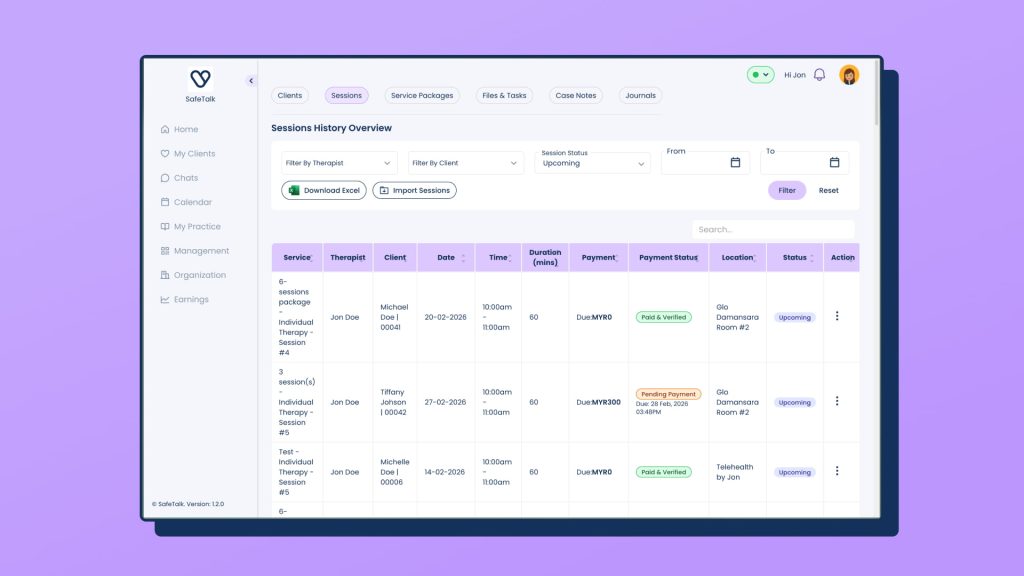
View all sessions created or booked within SafeTalk. All sessions can be exported as Excel, and you can import previous sessions from other systems.
Services
View all booked packages or assigned services.
Files
View all files shared with you or uploaded within your practice.
Case Notes
View all case notes written in SafeTalk. All notes can be downloaded as PDF files.
Journals
Coming Soon
View all journals submitted by clients that are shared with you as their therapist (excluding private journals).
Bringing Your Practice Together
My Practice centralizes your scheduling, documentation, client records, and many more operational tools into one structured system. Whether you are working independently or managing multiple therapists, it provides clear oversight while keeping your workflows organized and consistent across your entire practice.
If you are setting up SafeTalk for a team or clinic, refer to our guide:
How to Setup Your Organization on SafeTalk