
Managing Your Subscription

Managing your SafeTalk subscription is simple, allowing you to upgrade, downgrade, or adjust seats anytime with everything handled automatically and securely.
See Your Current Plan and Billing
- Log in to your SafeTalk account.
- If you are under an Organization Acount, go to Organization → Subscription.
- If you are under a Solo/Freelancer Account, go to My Practice → Subscription.
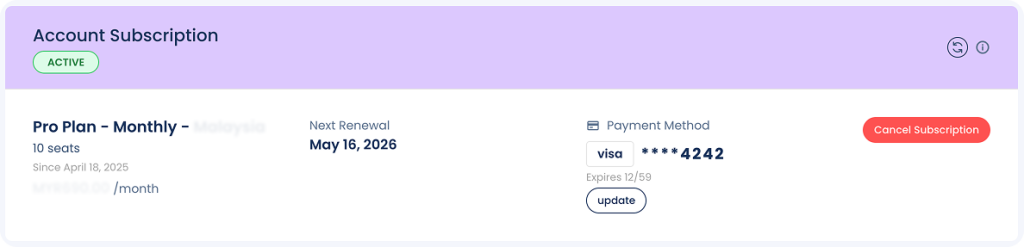
Here you will see your current plan, whether your billing is monthly or yearly, how many seats you have (for organizations), and when your current plan expires and your saved card (if any added).
Upgrade your plan or Change your number of Seats
Scroll further down the page & you will see all the different plans & payment options listed here. The card highlighted in green(🟩) with the “Current Plan” is your current running subscription.
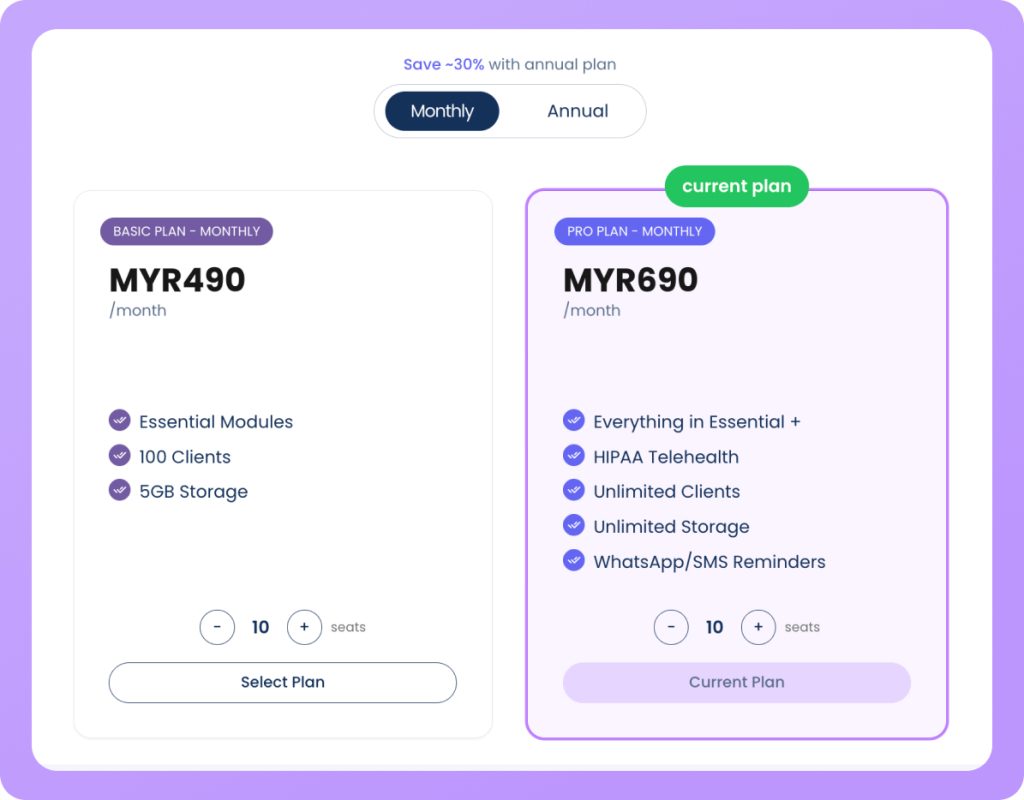
- Use the toggle on top to change your payment cycle(Monthly/Annual)
- Use the plus(+) & minus(-) button at the bottom of the card to change the number of seats
Lastly click on Select Plan underneath your preferred plan to Update your subscription. You’ll see a loading screen and it will take a few seconds to upgrade your subscription. You’ll be redirect back to the same page & see your updated subscription.
Note: if you change from Essential to Pro Plan you’ll gain immediate access to the Pro features such as Telehealth, WhatsApp/SMS reminders & more
Change your Card/Add a new Card for Payments
You will see your current card’s details (the last 4 digits of your card) under the subscription details. Click the Update button, and you will be taken to a screen where you can update, remove, or add a new payment card
Automatic Payments
SafeTalk will automatically charge your card on the same date each billing cycle, as long as there are sufficient funds, so you no longer need to make manual monthly or yearly payments, and you can update your payment method anytime in settings
Cancel your subscription
To cancel your subscription, click the red 🔴 Cancel Subscription button; your plan will end immediately, your account and data will remain accessible for up to 90 days, after which they may be deleted, and you can contact support if you have any questions.
Failed Payments
If a payment fails due to insufficient funds or card-related issues, you will be notified and your account will move into due status; SafeTalk will automatically retry the payment over the next few days, and if it continues to fail, your account will be suspended so you can still access data but cannot take appointments, write documentation, or perform any actions.
Process Failed Payment
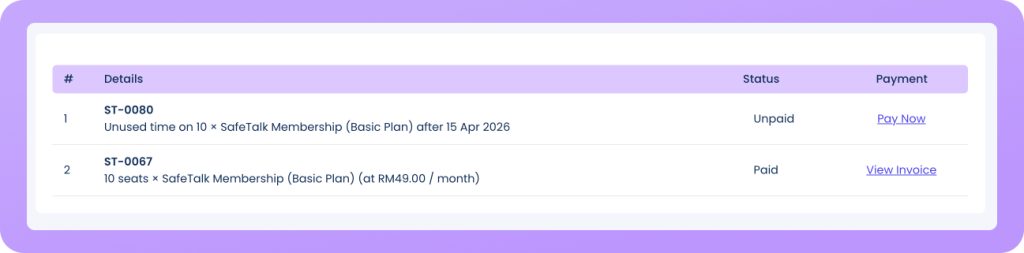
You can either wait for SafeTalk to retry the payment automatically or manually reprocess it by scrolling to the bottom of the page, selecting your latest invoice marked “Past Due,” and clicking “Pay Now” on the next screen
Need further assistance?
For any further assistance or questions, you can reach our support team through the help center