

SafeTalk gives you flexibility when booking therapy sessions. Whether you prefer using the calendar view or accessing session creation from anywhere in the system, you can choose the workflow that suits you best.
In this guide, we’ll focus specifically on the different ways to book a session, all using the same session creation window.
SafeTalk Gives You Multiple Ways to Book a Session
SafeTalk is designed with flexibility in mind. Instead of limiting you to a single workflow, it provides multiple ways to create or book a session depending on how you prefer to work.
You can schedule visually through the calendar or quickly open Create Session via Quick Create — both use the same create session window. Alternatively, you can use the dedicated Create Session option from the + button in the bottom right, which is especially useful when managing sessions across therapists within an organization.
This flexibility allows you to choose the most efficient entry point while keeping your booking process organized and consistent.
3 Different Ways to Book a Session on SafeTalk
1. Book a Session Through the Calendar
This method is ideal if you prefer visual scheduling.
From the sidebar, go to Calendar. Click on any date and the session window will automatically pre-fill the selected date.
If your availability is already configured, simply click on an available slot (it will pre-fill the selected date and time). Then select the client, service package and location before saving.
You can also book through the Room Calendar:
- Go to Management → Rooms
- Click the calendar icon at the top right of the selected room
- Follow the same booking steps
2. Book a Session Using Quick Create
Quick Create is a window that allows you to quickly access multiple functions in SafeTalk. For booking purposes, select Create Session inside Quick Create.
Click the Quick Access (+) button at the bottom right and select Quick Create of the screen and choose Create Session, or use:
- ⌘ + K (Mac)
- Ctrl + K (Windows)
This opens the exact same window as the previous step, but you need set the date & time manually.
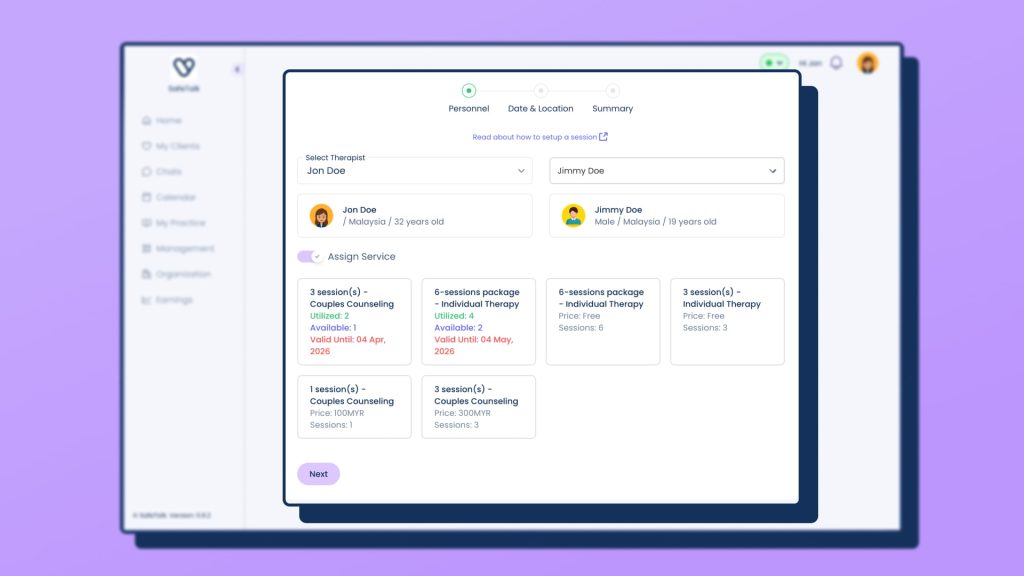
3. Create a session page
This method is best if you want to book on behalf of other therapists within your organization, if you are an admin.
Read the full guide below:
👉🏻 How to setup a new Session with a Client on SafeTalk
Choose the Entry Point That Fits Your Workflow
Choose the method that matches how you work. Set up your availability first to enable faster autofill and smoother scheduling.
Explore more SafeTalk guides to streamline your practice and improve session management.