
How to Create Multiple Booking Links

Your primary booking link shows your full availability. Now in SafeTalk, you can create additional Booking Links to have only specific set of options.
Examples:
– Say, as a therapist, you serve both corporate clients and the general public. Create one dedicated booking link for corporate clients that shows only corporate services and locations & another for general public. So client only see services and locations that relate to them
– Another example, let’s say your team has both senior therapists and interns. Create a separate booking link for seniors, so clients can book directly with senior therapists, with out seeing the interns. And the same in vice versa
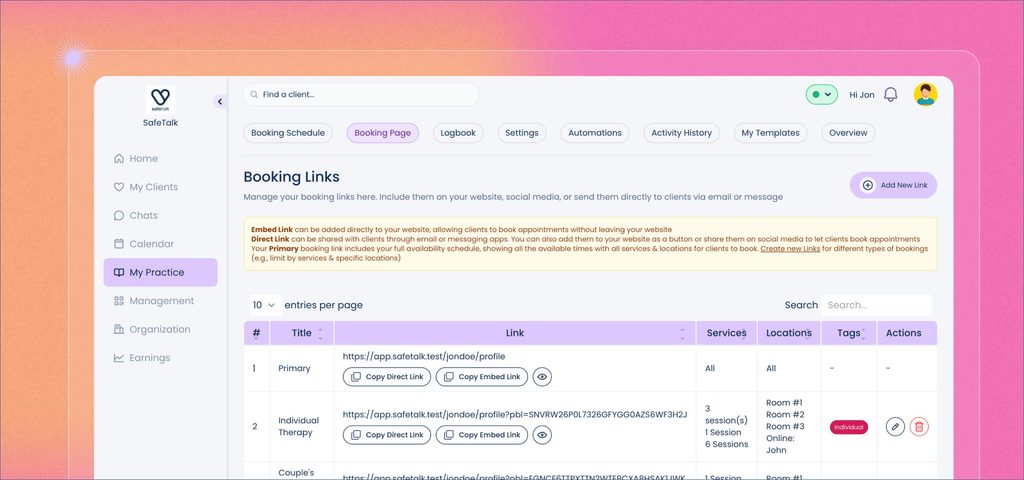
Booking Links for a Therapists
- Go to My Practice & open Booking Page page
- Select Add New Link and give it a clear title.
- Choose the services and locations to include.
- Optionally, select a tag/or category to make it easier to identify the clients who book via this link
- Select Create Link.
For instance: you can make one link for online individual counseling only and another for in-person couples therapy at your centre. Have this different links across your website, or only share a link to the service that the client is interested in to avoid confusion.
You can also create a separate booking link for each EAP and corporate client. Select the relevant services and locations, add an EAP tag/category, and share that client’s link directly with them. When they book, SafeTalk assigns the tag to the client and limits them to services associated with it.
Copy the direct link to share by email, message, or social media. If you want to add the booking link to your website, you can also copy the embed link. Setting Up Your SafeTalk Booking Widget
Booking Links for a Organizations & Teams
- Go to Organization & Open Booking Page from your navigation
- Select Add New Link and give it a clear title.
- Choose the therapists, services, and locations to include.
- Optionally, select a tag.
- Select Create Link.
For example, an organization can create a separate booking link for EAP & corporate clients. Select the relevant therapists, services, and locations, add an EAP tag, and share that link directly with corporate clients. When they book, SafeTalk assigns the tag to the client and limits them to services associated with it.
Manage your links
From Booking Links, you can edit a link’s title, services, locations, therapists, or tag. You can also remove links you no longer need.
For more on engagement tags and service package settings, see Advanced Service Packages Settings.