Getting Familiar with SafeTalk

Welcome to SafeTalk
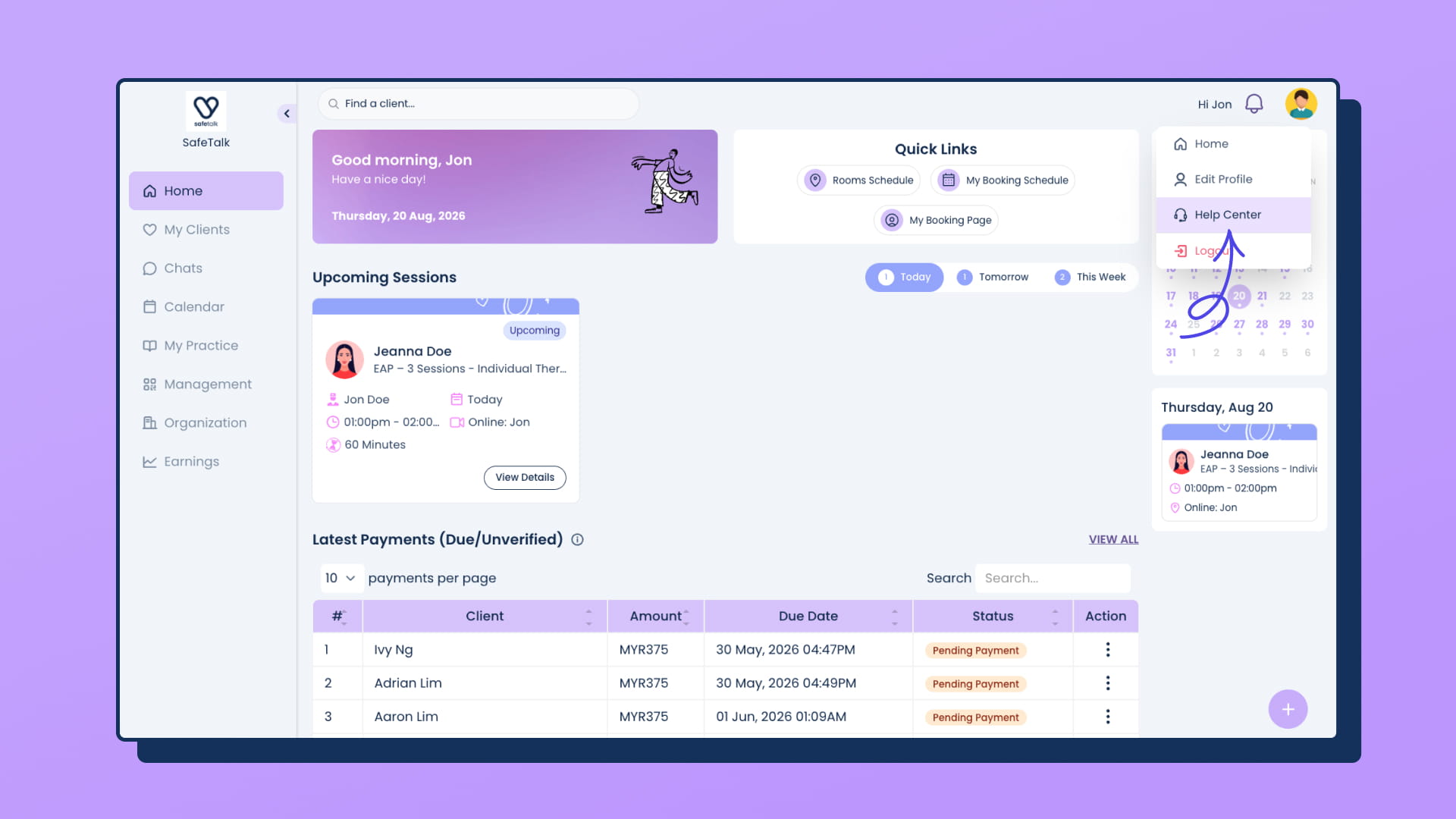
Welcome to SafeTalk! Whether you’re just getting started or exploring features you haven’t used yet, this short tour will walk you through the main areas of the platform so you know exactly where everything is.
In just a few minutes, you’ll learn where to manage your practice, organize your clients, schedule appointments, and customize SafeTalk to fit your workflow.
Management
The Management section is where you’ll configure the core parts of your practice.
Services
Create and manage the services you offer, such as individual therapy, couples counseling, assessments, or consultation sessions.
👉 Learn more: Managing Your Services
Rooms
Set up the locations where appointments take place.
This includes:
- Physical consultation rooms
- SafeTalk Telehealth rooms
- Custom online rooms (Zoom, Google Meet, Doxy)
👉 Learn more: How to Set Up Online and In-Person Appointment Rooms
Payment Channels
Configure how clients can pay you.
You can enable:
- Bank transfer
- QR payments
- Stripe
- Custom payment methods
👉 Learn more: Managing Payment Channels
My Practice
The My Practice section is where you configure how your practice operates.
Here you can:
- Manage your availability
- Create scheduling templates
- Configure intake forms and case note templates
- Set booking rules
- Create automation workflows
👉 Learn more: A Complete Guide to “My Practice” in SafeTalk
Booking Page
Your Booking Page allows clients to schedule appointments online.
Share the booking link by:
- Adding it to your website
- Including it in your social media profiles
- Sending it directly to clients
Once shared, clients can book appointments based on your availability.
👉 Learn more: Online Booking in SafeTalk
Organization
If you’re using SafeTalk as an organization, you’ll also have access to the Organization page.
From here you can:
- Invite therapists
- Manage team members
- Configure permissions
- Control organization-wide settings
👉 Learn more: Setting Up Your Organization on SafeTalk
My Clients
The My Clients page contains every client in your practice.
You can:
- Add existing clients
- View client information
- Search your client database
- Access each client’s dashboard
Clients who register through your Booking Page will also appear here automatically.
Client Files
Each client has a dedicated file containing everything related to their care.
From a client’s file, you can:
- View appointment history
- View payment history
- Write case notes
- Assign forms and homework
- Manage files and tasks
- Track progress
Quick Create
The Quick Create button is always available in the bottom-right corner of the screen.
It provides fast access to commonly used actions, including:
- Create a session
- Block your schedule
- Assign homework
- Create tasks
- And more
👉 Learn more: How to Use Quick Create in SafeTalk
Learn More Buttons
Throughout SafeTalk you’ll notice Learn More buttons beside many features.
Each button links directly to the relevant Help Centre article, allowing you to learn more about the feature without searching manually.
Need More Help?
The SafeTalk Help Centre contains detailed step-by-step guides for every feature.
If you can’t find what you’re looking for, use the Quick Create button and select Help Centre. From there, you’ll find our direct support contact options and can reach out to our support team for assistance.