
Setting Up Payment Channels in SafeTalk

Sometimes the most important part of running your practice is making sure clients can pay you easily and securely. SafeTalk lets you set up multiple payment methods, so you can choose what works best for your practice and your clients.
Getting Started with Payment Settings
Go to Management > Payment Channels. Here you’ll see options for:
Credit Card (Stripe)
Contact us to enable Stripe for your account. You’ll need to register directly with Stripe before activating this option.
👉 Read the blog here
Bank Transfer
Perfect if your clients prefer paying directly from their bank.
Add your bank account number, bank name, and notes to guide them.
QR Payment
Allow clients to scan and pay instantly using a QR code.
Upload your QR image (for example, DuitNowQR in Malaysia or the equivalent in your country) and add notes.
Custom Channel
Sometimes you may need something more flexible, like handling multiple bank accounts, international clients, or alternative payment services. The custom channel option lets you set up methods like PayPal, Wise, or anything else that works best for your clients.
All you need is a channel name and clear instructions
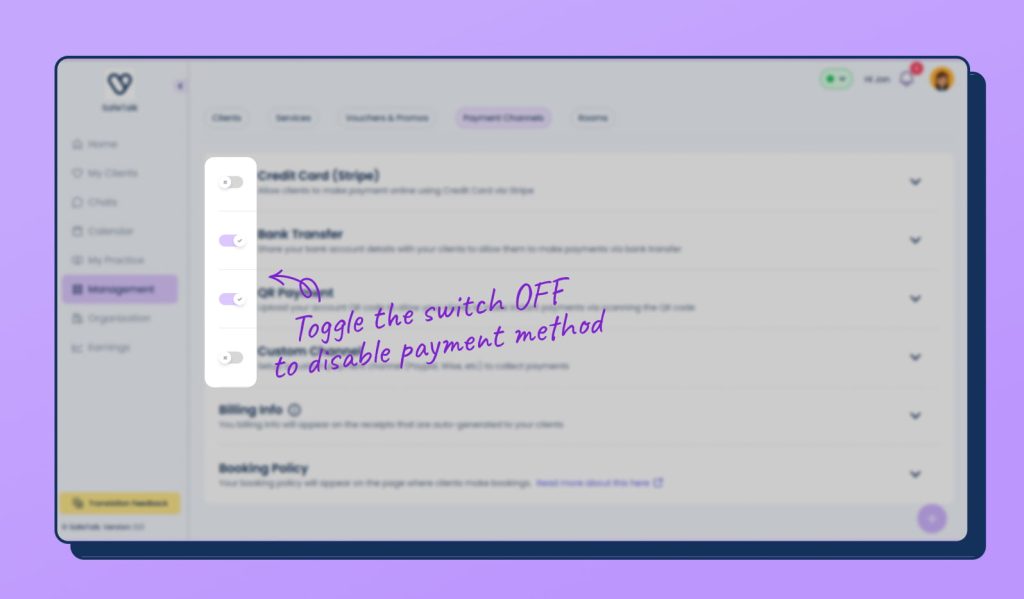
Hide/Disable Payment Method
⚠️Next to each payment method, you’ll also see a small switch. If a method is already set up but you want to temporarily hide or disable it, toggle the switch OFF. It will not appear to clients until you turn it back ON.
Billing Info
👉 Read here how to setup your Billing Info
Booking Policy
From this page, you can also update your booking modal settings.
Read our tips on writing a booking policy (with free templates)
For Organizations
If you’re an organization admin, you can either set up payment methods and billing details for the entire organization, just like in the steps above, or you can give each therapist the ability to manage their own. SafeTalk provides a setting under Organization > Settings called Each team member has their own separate payment channels.
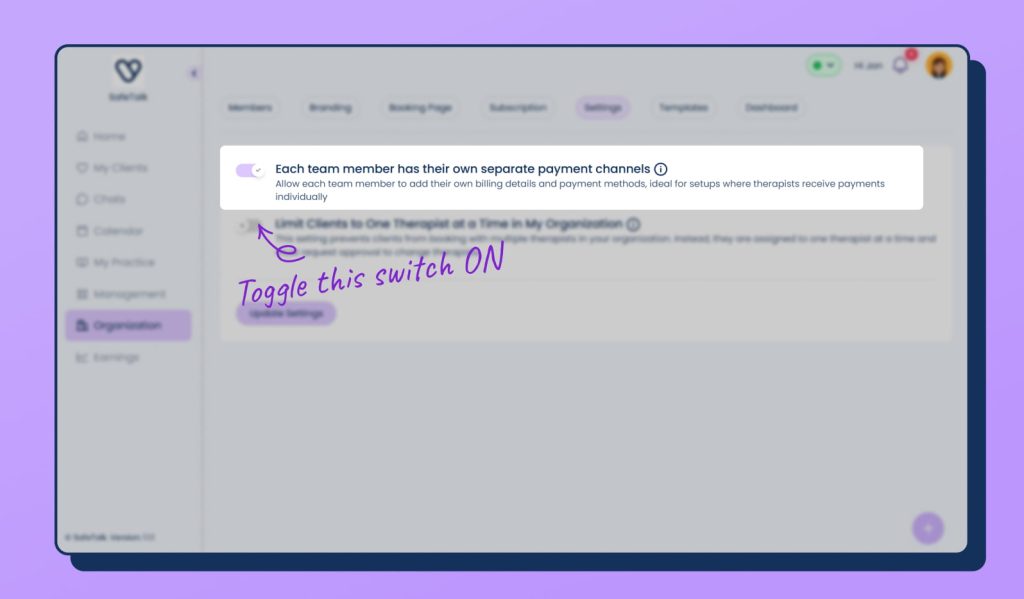
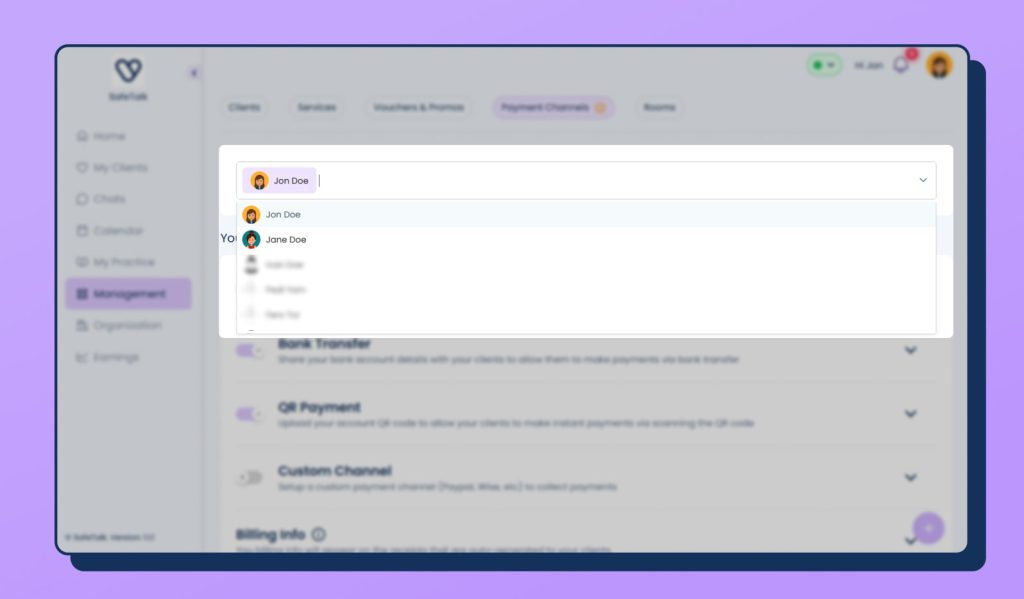
When enabled, this option lets every therapist in your team add their own billing details and payment methods. This is especially useful if therapists are paid individually or use separate bank accounts. Once turned on, you’ll see a dropdown on the Payment Channels page with all the therapists in your organization, so you can manage each setup separately.
What Clients Will See
We recommend keeping at least one payment method enabled so your clients always have a way to pay for their sessions. Below is a preview of how the payment options will appear to clients during payment.
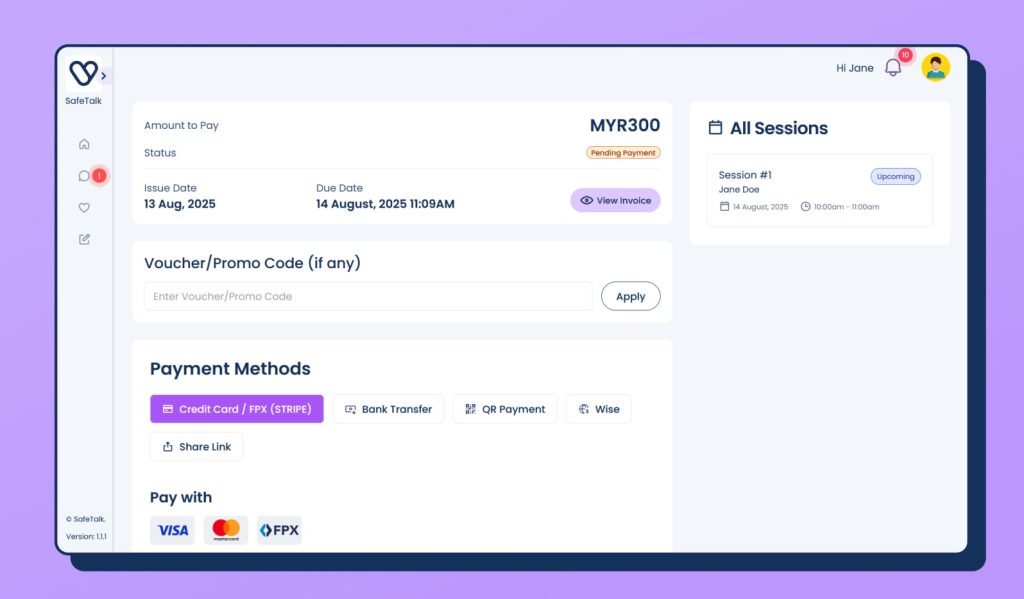
If you’d like to guide your clients on how to complete their payments, you can share this blog with them – How to make a Payment for a Session on SafeTalk