
How to Set Up Your Organization on SafeTalk

If you’ve created a SafeTalk organization, setting it up properly ensures your team runs efficiently. All organization tools are found under the Organization tab in your sidebar, from managing members to updating your branding and booking page.
At the top, you’ll see the navigation bar for your organization. Each tab covers a key setup area – let’s go through them one by one.
Organization Setup Overview
Members
Start with your team setup. Under Members, you can invite therapists, set permissions, and manage access.
Admins can assign roles, suspend accounts, or remove members when needed.
Read the full guide here: How to Use SafeTalk for Teams or Group Practices
Branding
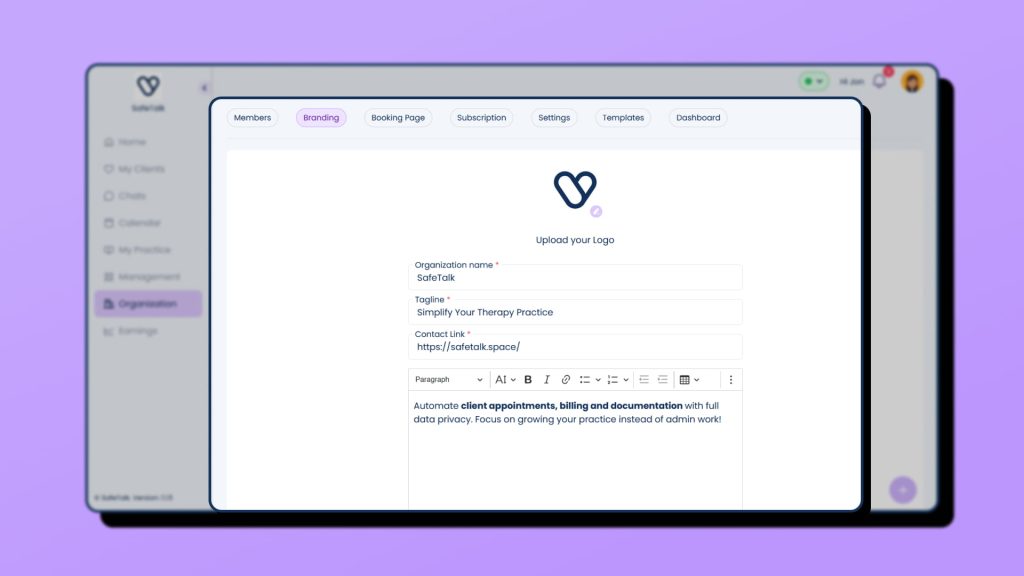
The Branding tab lets you personalize your organization profile. Add your logo, tagline, contact link, and description to reflect your practice’s identity.
Your uploaded logo appears across SafeTalk – on all invoices, and on the sidebar for both your team members and clients.
These details also appear on your organization booking page, helping clients recognize your brand at a glance.
Booking Page
Under Booking Page, you’ll see a live preview of your organization’s public booking page. Copy and share this link so clients can book sessions directly with your team.
Note: Embedding the organization booking page on external websites isn’t supported yet.
If you’re setting up individual therapist booking pages, see our guide on How to Integrate Your SafeTalk’s Booking Widget Into Your Website
Settings
The Settings tab includes two important toggles to customize how your organization operates:
- Each team member has their own separate payment channels
Use this if therapists handle payments independently. Learn more in How to Set Up Payment Methods in SafeTalk - Limit Clients to One Therapist at a Time in My Organization
Enable this to keep your client list organized and ensure each client is assigned to only one therapist at a time. When turned on, you’ll have the option to manually reassign clients between therapists if needed. Read more in Managing Transitions: The Therapist’s Guide to Reassignment of Clients - Require Contact Number on Booking Page
Enable this to make contact number field required to fill upduring booking through Organization Booking Page. Read more in How to Require a Contact Number During Client Bookings
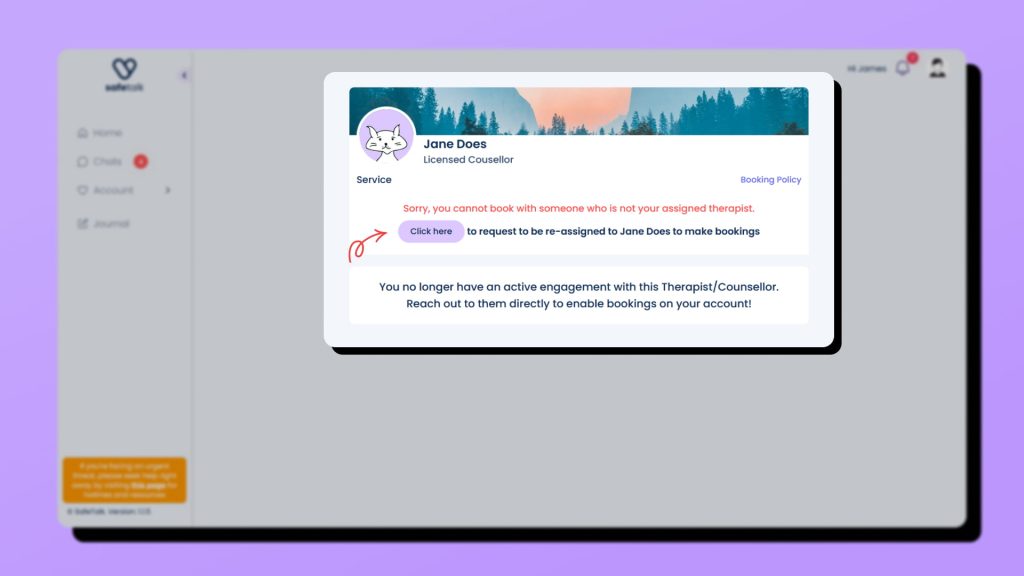
For clients, this setting prevents them from booking with another therapist until they are reassigned. Their booking page will display a message like the example below:
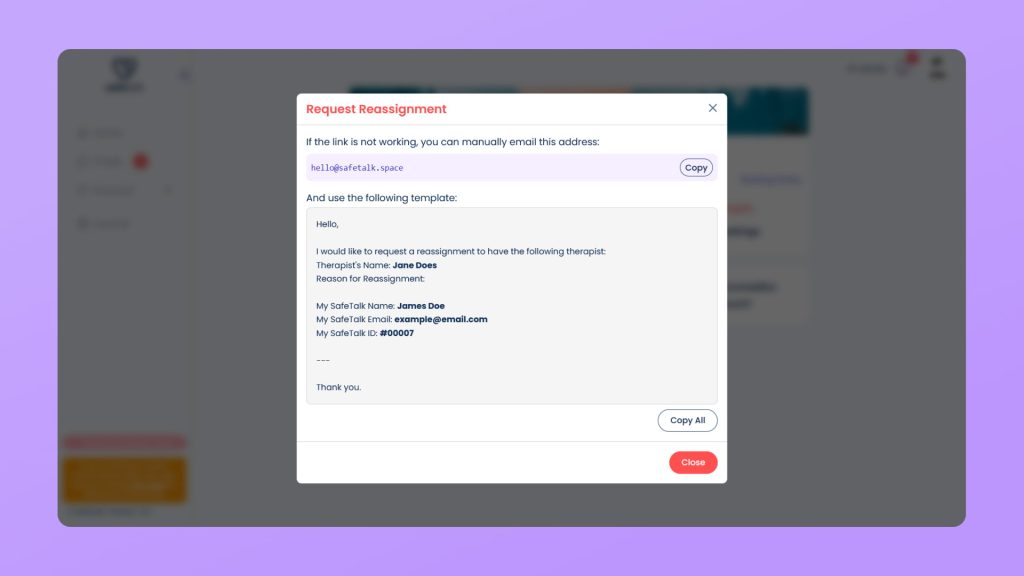
After clicking the contact link, they will see a Request Reassignment modal that provides an email template for reassignment requests (it will be the email of the organization admin):
Templates
Standardize documentation across your team and create templates that can be used by anyone within the organization.
Under Templates, you can set up:
- Form templates for intakes, consent, feedback or assessments (SafeTalk Form Templates)
- Case note templates for consistent progress tracking (Case Note Templates)
Dashboard
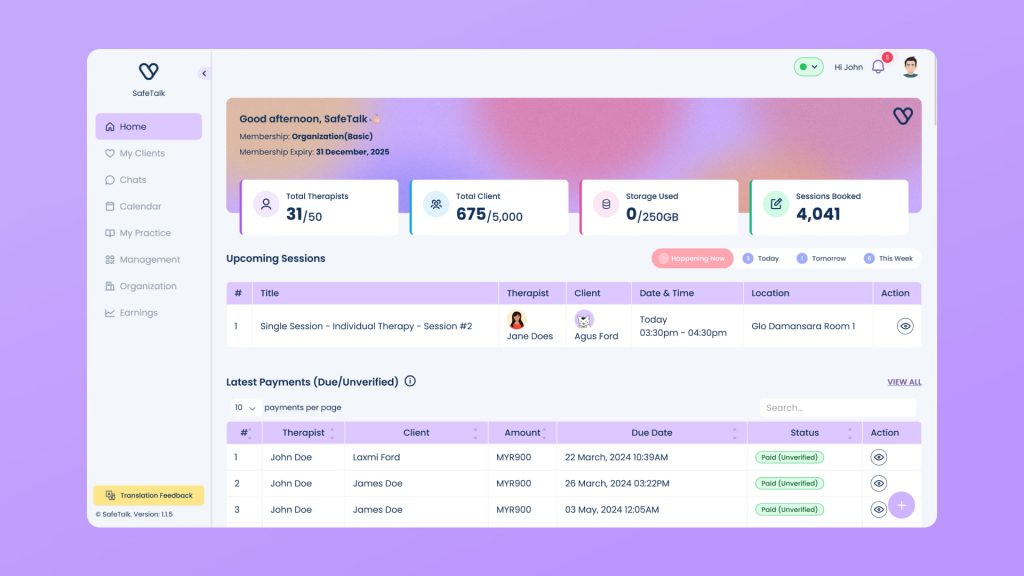
The Dashboard gives a full overview of your organization, including sessions, clients, payments, and performance charts. It provides key insights so admins can monitor activity and team performance in one view.
Conclusion
Once these sections are configured, your SafeTalk organization is ready for daily operations. You’ll have a clear overview of your team, clients, and performance while maintaining consistent branding and documentation.
Discover how leading therapy centers use SafeTalk to streamline scheduling, team management, and reporting. Schedule a demo today