
How to Submit Your Files and Tasks in SafeTalk

Your therapist or counsellor may send you tasks through SafeTalk, such as forms, documents, homework, or resources to review.
When a new task is assigned to you, you will receive an email from SafeTalk. Follow the steps below to open and complete your task.
1. Open the Email from SafeTalk
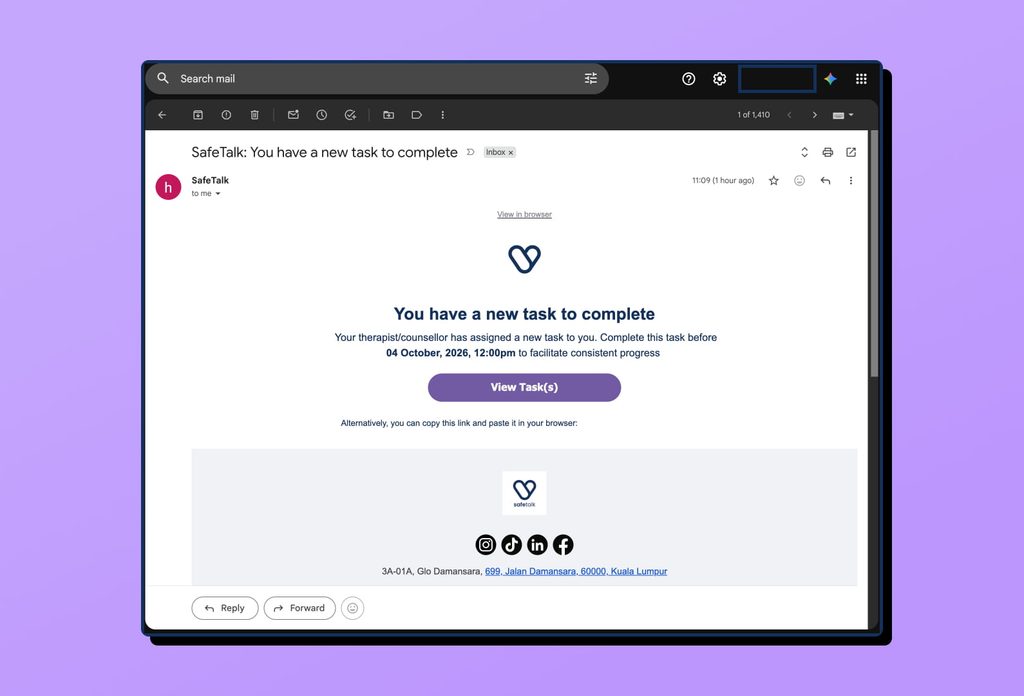
When your therapist or counsellor assigns you a new task, you will receive an email with the subject You have a new task to complete.
The email will show the task’s due date and include a View Task(s) button.
Select View Task(s) to open your task in SafeTalk.
2. Log in to SafeTalk
After selecting View Task(s), SafeTalk will open in your browser.
If you are already logged in, you will be taken directly to your dashboard.
If you are not logged in, you will first see the SafeTalk login page.
Enter the email address and password you use for SafeTalk, then select Log In.
After logging in, SafeTalk will take you to the task your therapist or counsellor assigned to you.
First time using SafeTalk?
If you have not created your SafeTalk account yet, follow the instructions in your SafeTalk invitation email to set up your account.
3. Review Your Task
Once you open the task, you can see what your therapist or counsellor has asked you to do.
Tasks can include:
- Files – Documents, worksheets, PDFs, or images that you may need to download, complete and submit.
- Forms – Forms that you can complete directly in SafeTalk.
- Links – Articles, videos, or other resources to view.
Some tasks may also have a due date. This tells you when your therapist or counsellor would like you to complete the task.
4. Complete Your Task
The steps you need to follow depend on the type of task.
If you need to submit a file
If your therapist or counsellor asks you to complete a document:
- Select Download to download the file.
- Open the file on your device.
- Complete the requested information.
- Return to SafeTalk.
- Select Submit Completed File.
- Choose the completed file from your device.
- Wait for the upload to finish.
Once the file has been uploaded successfully, the task is completed.
If a file is only meant for you to read or keep, you will see View instead of Submit Completed File.
If you need to complete a form
Forms can be completed directly in SafeTalk.
- Open the form.
- Answer the questions.
- Review your answers.
- Select Submit when you are finished.
The form will be sent to your therapist or counsellor and the task will be marked as completed.
If you need to open a link
If your therapist or counsellor shares a link:
- Select View.
- The link will open in a new browser tab.
- Read, watch, or review the material provided.
Links normally do not require you to submit anything.
5. Find Your Tasks in SafeTalk
You can also access your tasks directly from SafeTalk without going back to the email.
Your dashboard shows tasks that still require your attention, such as forms you need to complete or files you need to submit.
Each task shows its type, title and due date when one has been set.

View all your files and tasks
To see everything your therapist or counsellor has shared with you:
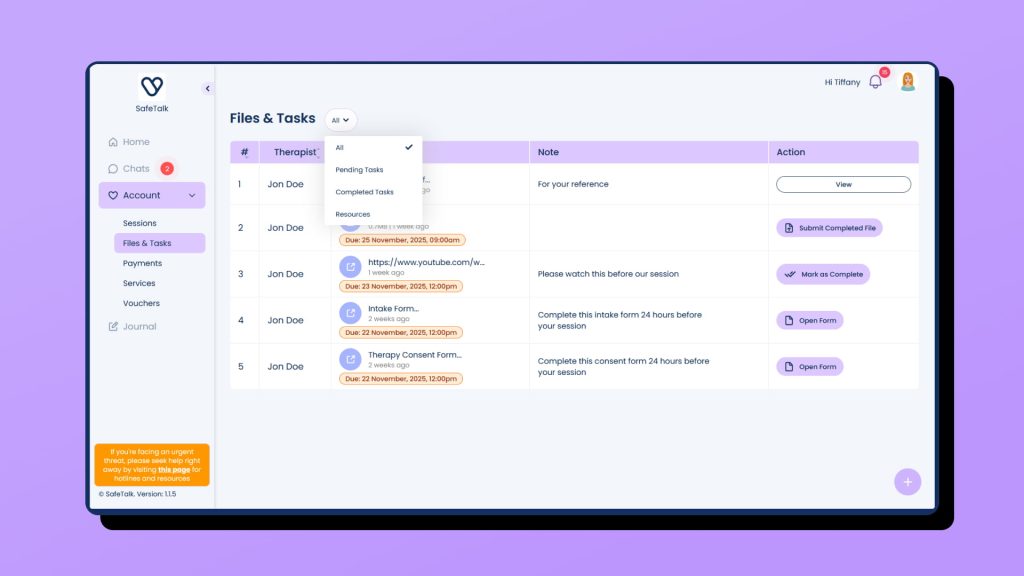
- Select Account from the sidebar.
- Select Files & Tasks.
- Use the filter at the top to choose what you want to see.
You can switch between:
- All – Everything your therapist or counsellor has shared with you.
- Pending Tasks – Tasks that still require your attention.
- Completed Tasks – Tasks you have already completed.
- Resources – Files and links shared for you to view or use (no due date / not required to submit back).
Understanding Due Dates
Some tasks have a due date and others do not.
A due date tells you when your therapist or counsellor would like you to complete the task.
You may see due dates on tasks such as:
- Intake forms
- Consent forms
- Therapy homework
- Forms that need to be completed before a session
- Resources your therapist or counsellor wants you to review before a session
If a task does not have a due date, you can still access it from Files & Tasks.
What Happens After You Complete a Task?
After you submit a file or form, the task is marked as completed.
You can find your completed tasks later by going to:
Account → Files & Tasks → Completed Tasks
This lets you keep track of the files and forms you have already submitted.
The Full Process
When your therapist or counsellor sends you a task, the process is:
Receive the email → Select View Task(s) → Log in if needed → Open the task → Complete it → Submit it if required
You can return to Account → Files & Tasks at any time to view your pending tasks, completed tasks, and resources.